What to do when the SmartThings app fails to add your TV
Important Note: The information on this page is for Hong Kong products only. Models, sequences or settings will vary depending on location and/or where the product had been purchased. To be redirected to your local support page please click here.
SmartThings app provides convenience when using your Samsung Smart TV and other Samsung appliances. However, if for some reason the SmartThings app failed to add your device in the middle of the process, there are a few ways to troubleshoot this issue. Just follow the steps below.
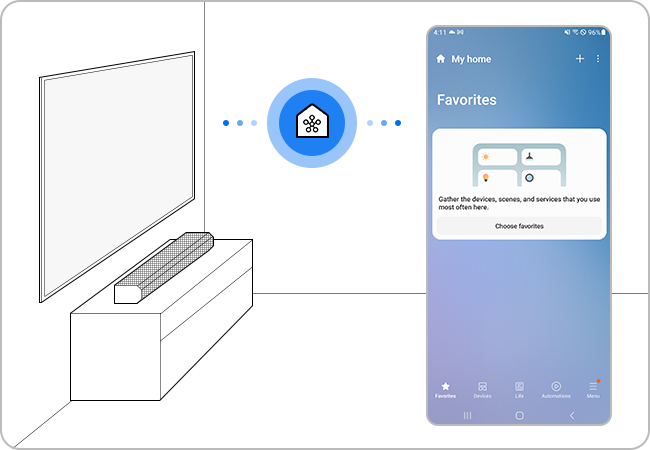
Check the wireless network status
When adding a device via Wi-Fi, the TV and smartphone must be connected to the same network. In addition, the smartphone and TV need to be logged into the same Samsung Account to pair.
TVs made after 2017 that support Bluetooth have a BLE (Bluetooth Low Energy) function, so you can search for and set up devices without being connected to the same network.


Step 1. Tap Settings on your smartphone.


Step 2. Tap Connections.


Step 3. Tap Wi-Fi.


Step 4. Make sure the device is connected to the same Wi-Fi network with your TV. If not, select the network and enter the associated password.
Note:
- If more than 10 devices are connected to the router, the registration may fail.
- If the router and the TV are far apart, the communication may not be smooth and registration may fail.
In Wi-Fi settings, change Switch to mobile data to off

Step 1. Tap Settings on your smartphone.

Step 2. Tap Connections.

Step 3. Tap Wi-Fi.


Step 4. Tap More (Three-dots icon) at top right hand corner.


Step 5. Tap Intelligent Wi-Fi.


Step 6. Disable Switch to mobile data.
Note: Settings path, menu names and UI layout may vary depending on your model and software version.
After changing the settings, start registering your device again from the beginning


Step 1. Launch the SmartThings app and tap Add (the plus icon).


Step 2. Tap Add device.


Step 3. You can start registration by Scanning QR code on your product/packaging or Scanning nearby available devices.


Step 4. If you selected Scan nearby, choose the desired device from the list.


Step 5. SmartThings will start and proceed device registration


Step 6. A PIN will appear on your TV. Input the PIN as prompted on your mobile device, then tap Done.


Step 7. Wait for SmartThings to continue the registration.


Step 8. After registration succeeds, you can adjust settings of the added device. Tap Done to complete.
Make sure that your TV is supported and then try to register the device on the SmartThings app again.


Step 1. Launch the SmartThings app and tap Menu at the bottom right corner.


Step 2. Tap Supported devices.


Step 3. You can check supported devices by brand or directly search your device using the Magnifier icon on top right hand corner.
Check for software updates
Make sure the software on your smartphone and SmartThings app is up to date, and if necessary, update the firmware of your TV as well.
Note: The SmartThings app is compatible with phones running Android 8.0 or higher as well as iOS 12.0 or higher.

Step 1. Launch the SmartThings app and tap Menu at the bottom right corner.


Step 2. Tap SmartThings Settings (Gear Icon) on the top right corner.


Step 3. Scroll down and tap About SmartThings.


Step 4. If your SmartThings needs update, you can update the software here.
Step 1.
Go to Settings > All Settings.


Step 2.
Select Support.


Step 3.
Select Software Update.


Step 4.
Select Update Now.


Note:
- If you are having trouble with your Samsung Smart TV, you should always check to see if there are any software updates available. Downloading the latest update may fix for your problem.
- Device screenshots, function availability, setting path, menu options and layout may vary depending on the device model and software version.
If the above information does not match what your product is showing, you may check the User Manual for your product. If you are unable to solve the problem, please contact us for further assistance.
Thank you for your feedback!
Please answer all questions.
RC01_Static Content : This text is only displayed on the editor page