Mirror your Galaxy phone’s screen to your Samsung Smart TV with Smart View
Important Note: The information on this page is for Hong Kong products only. Models, sequences or settings will vary depending on location and/or where the product had been purchased. To be redirected to your local support page please click here.
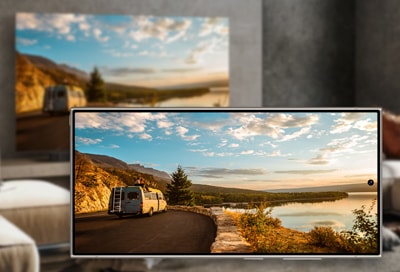
The Smart View feature lets you mirror your Galaxy phone’s screen to your Samsung Smart TV, allowing you to share content such as videos and photos. You can follow the instructions in our guide to learn how to use Smart View.
Note: If screen mirroring does not connect properly, try connecting to the same Wi-Fi network on your TV and mobile device, and then try running the screen mirroring feature again.
You can use Smart View from the Quick Settings Panel to quickly project the screen of your Galaxy device to the selected TV.


Step 1. Swipe down from the top right corner of your screen to open Quick Settings Panel.


Step 2. Tap Smart View.


Step 3. Select the device you would like to project your screen on.
*If any prompts or notifications pop up, follow the on-screen instructions to allow screen mirroring.


Step 4. If the Smart View quick panel appears, your screen is successfully mirrored to your TV.
Result when the screen in Step 4 is mirrored on the TV:

You can mirror the screen of your Galaxy device to your TV by Smart View through SmartThings. To use this feature, you have to register your TV in SmartThings first. You can refer to the article below for detailed procedures if you have not added your TV to SmartThings:
How to add your Smart TV to the SmartThings app
With the Smart View feature in SmartThings, you can even project the TV screen to your Galaxy device.


Step 1. Open SmartThings on your Galaxy device.


Step 2. Go to Devices and tap the TV card you would like to project your screen on.


Step 3. Tap Featured.


Step 4. Scroll down and tap Smart View.


Step 5. Tap Phone -> TV to project your screen onto this TV.
*You can also choose TV -> Phone to project your TV screen on your Galaxy device.


Step 6. If the Smart View quick panel appears, your screen is successfully mirrored to your TV.
*If any prompts or notifications pop up, follow the on-screen instruction to allow screen mirroring.
Result when the screen in Step 6 is mirrored on the TV:

You can mirror the screen of your Galaxy device to your TV by simply tapping the back of your Galaxy device gently on your TV frame. To use this feature, you have to enable Tap View in SmartThings.
Enabling "Tap View" in SmartThings:

Step 1. Open SmartThings on your Galaxy device.


Step 2. Go to the Menu tab.


Step 3. Tap Settings
(Gear icon).


Step 4. Enable Tap View, Tap Sound.
A pop-up notification will appear on your Galaxy device if it successfully senses the TV when you gently tap the back of your phone on your TV frame. Tap Start now to begin screen mirroring.


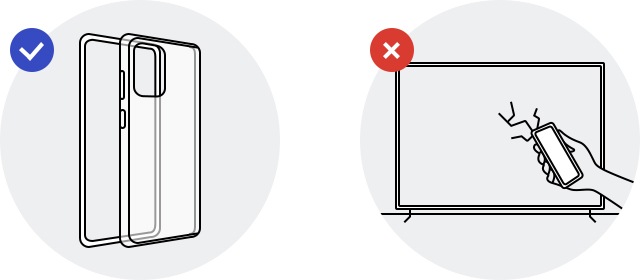
To avoid damaging the device accidentally, you need to tap gently. Tapping your device on the screen or corner of the TV directly can cause serious damage to the screen. You can add a protective case to your phone for extra security if needed.
- Do not tap on the screen and the corners.
- Ensure your smartphone has a case on and tap lightly on the outer frame.
1. Minimized Panel
Arrow button
You can click the Arrow button to hide the Smart View Quick Control Panel on your Galaxy device.
Click on the bar on the edge of your screen to expand the hidden panel.


Normal minimized state of the Smart View Quick Control Panel


Hidden state of the Smart View Quick Control Panel
Smart View button
You can click the Smart View button to expand the Quick Control Panel for more settings.
2. Expanded Panel


Cast this app only
When you are using an application while Smart View is on, you can select this option so that only the screen of the "Cast only" application will be mirrored on your TV.
The chosen application will be shown on your Galaxy device as a movable window, while you can normally use your device to perform other operations. The rest of the screen, except for the selected application, will not be mirrored.
Change aspect ratio
You can change the aspect ratio of the mirrored screen on your TV.
Pause Smart View
You can pause screen mirroring without disconnecting the Smart View connection between your Galaxy device and your TV.
Multi View
Turn this feature on to show both TV screen and Galaxy device screen on your TV simultaneously.
Multi View controls
You can adjust Multi View controls here:
- Screen size
Change the screen size of the selected screen. - Picture-in-picture
Select to enter PIP mode, or change the location of the PIP screen when you are in PIP mode. If you want to exit PIP mode, you can press the Screen size button once. - Select screen
Select the screen to be controlled.
Add shortcut to Home screen
Add a shortcut to quickly mirror the screen of your Galaxy device on the current TV next time.
Disconnect
End screen mirroring by tapping this option.
Note:
You can also disconnect from Smart View by swiping down from the top right corner of the screen to open the Quick Settings Panel, and then tapping the Smart View icon.
More (Three-dots icon)
Tap this icon and select Settings to open the Smart View Settings menu


Change aspect ratio
You can change the aspect ratio of the mirrored screen on your TV. This works the same as the option in the Quick Control Panel.
Hide notifications on TV
Turn on this function so that the notifications on your Galaxy device will not be shown on TV.
Note: Notifications from some apps that do not comply with standards may still appear on your TV.
Keep phone screen on
Turn on this function so that your Galaxy device will not enter the lock screen while Smart View is on.
Labs
View Smart View Labs for more settings options.
Contact us
You can click this option to perform diagnostics or send feedback if you encounter any difficulties when using Smart View.
About Smart View
You can view your Smart View version here.


Allow all apps to be cast
If some of your applications fail to be mirrored on your TV, try turning this option on to see if the problem can be resolved.
Rotate 90°
The mirrored screen on your TV will rotate 90° each time you tap this option.
Chromecast support
If your device fails to mirror your screen on your TV, try turning this option on to see if the problem can be resolved.
1. My TV does not appear on the available device list on my mobile device
Please make sure your mobile device and TV are connected to the same Wi-Fi network.
2. My device fails to mirror the screen on my TV
Please try enabling Chromecast support in SmartThings > Menu > SmartThings Settings > Labs.
3. Some of the apps cannot be mirrored on my TV
Please make sure you have enabled Allow all apps to be cast in SmartThings > Menu > SmartThings Settings > Labs.
4. My TV rejects the connection
Please follow the steps below to ensure your mobile device's connection is not denied:
Step 1.
Go to Settings > All Settings.


Step 2.
Select Connections.


Step 3.
Select Device Connect Manager.


Step 4.
Select Device List.


Step 5.
Select your mobile device from the list and change the connection permission to Allow.


Notes:
- If you are having trouble with your Samsung Smart TV, you should always check to see if there are any software updates available. Downloading the latest update may fix your problem.
- Device screenshots, function availability, settings paths, menu options and layout may vary depending on the device model and software version.
If the above information does not match what your product is showing, you may check the User Manual for your product. If you are unable to solve the problem, please contact us for further assistance.
Thank you for your feedback!
Please answer all questions.
RC01_Static Content : This text is only displayed on the editor page