Mirror your iOS device’s screen to your Samsung Smart TV
Important Note: The information on this page is for Hong Kong products only. Models, sequences or settings will vary depending on location and/or where the product had been purchased. To be redirected to your local support page please click here.
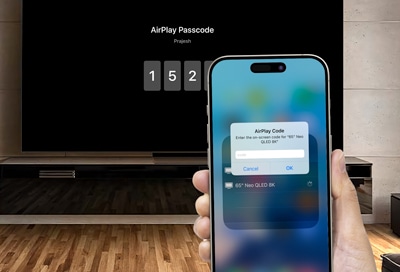
You can mirror your iOS device’s screen to your Samsung Smart TV if you’d like to share content, such as videos and photos. You can follow the instructions in our guide to learn how to use the Screen Mirroring feature, as well as Apple AirPlay.
Note: Your iOS device and Samsung TV must be connected to the same Wi-Fi network to use Screen Mirroring.


Step 1. Swipe down from the top right corner of the screen to open Control Center, then tap the Screen Mirroring icon (the squares).


Step 2. Select the TV you want to mirror your screen to from the list


Step 3. If prompted, enter the PIN that appears on your selected TV.
To stop mirroring, swipe down from the top right of your iOS device’s screen to open the Control Center again, and then tap the Screen Mirroring icon. Tap Stop Mirroring to end screen mirroring.

Step 1. Swipe down from the top right of your iOS device’s screen to open the Control Center again, and then tap the Screen Mirroring icon.


Step 2. Tap Stop Mirroring to end screen mirroring.
To enjoy content from your iPhone, iPad, or Mac on your Samsung TV, the AirPlay feature must be turned on. Follow the steps below to enable AirPlay on your Samsung TV.
Step 1.
Go to Settings > All Settings.


Step 2.
Select Connections.


Step 3.
Select Apple AirPlay Settings.


Step 4.
Turn AirPlay to On to enable this feature.


1. My TV does not appear on the available device list on my mobile device
Please make sure your mobile device and TV are connected to the same Wi-Fi network.
2. My TV rejects the connection from my mobile device
Please follow the steps below to ensure your mobile device's connection is not denied:
Step 1.
Go to Settings > All Settings.
Step 2.
Select Connections.
Step 3.
Select Device Connect Manager.


Step 4.
Select Device List.


Step 5.
Select your mobile device from the list and change the connection permission to Allow.


Notes:
- If you are having trouble with your Samsung Smart TV, you should always check to see if there are any software updates available. Downloading the latest update may fix your problem.
- Device screenshots, function availability, settings paths, menu options and layout may vary depending on the device model and software version.
If the above information does not match what your product is showing, you may check the User Manual for your product. If you are unable to solve the problem, please contact us for further assistance.
Thank you for your feedback!
Please answer all questions.
RC01_Static Content : This text is only displayed on the editor page