Calls are dropping or no network signal on your Samsung Galaxy Watch
If calls are dropping or your Galaxy Watch cannot connect to a network, this is often caused by a temporary issue rather than a problem with your Samsung watch.

Before troubleshooting, consider when the issue happens:
- Does it happen only in certain locations or at specific times?
This is usually related to network coverage or the surrounding environment. - Or does it happen all the time, regardless of location?
This may indicate a more persistent issue that requires further checks.
Make sure your Galaxy Watch is updated to the latest software version.


Step 1. Open Settings > Tap Software update.


Step 2. Tap Download and install.


Step 3. Confirm your Galaxy Watch is up to date.
In most cases, this issue is caused by temporary external factors, such as network conditions or your environment. Try the steps below:
Step 1. Try again
End the call and try again after a few moments.
Step 2. Change location or try later
Move to a different location, especially if you are indoors or in a crowded area.
You can also try again later, as network conditions may vary during the day.
If calls drop consistently or there is no network connection, follow the steps below to check your watch.
Check if mobile service is set up


Step 1. Open Settings > Tap About watch.


Step 2. Check that your watch’s phone number is displayed.
Note: If no number is displayed, your watch is not connected to a mobile network. Contact your mobile carrier to check the activation status.
Check Flight mode setting


Step 1. Open Settings > Tap Connections.


Step 2. Make sure the Flight mode is turned off, and check your connection again.
Check network conditions
The issue may still be related to your carrier’s network.
Contact your mobile carrier to confirm network coverage in your area.
Run diagnostics with Samsung Members
Use the Samsung Members app on your connected phone:


Step 1. Open the Samsung Members app > Tap Diagnostics.


Step 2. Tap Watch diagnostics.


Step 3. Tap eSIM and network.


Step 4. Check the results and follow any recommended actions.
Thank you for your feedback!
Please answer all questions.
Contact Info
Digital Service Center
![DSC icon image]()
![DSC icon image]()


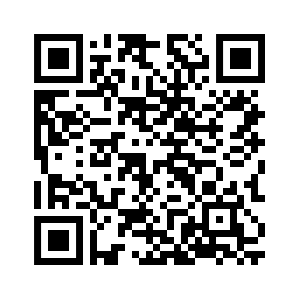
Scan to access
WhatsApp
![WhatsApp image icon]()
![WhatsApp image icon]()


Available 24 Hours / 7 days
WhatsApp@ 1-800-5-726-7864
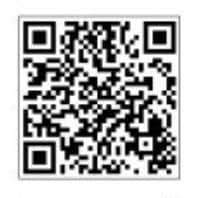
Scan to access
Chat
![Samsung India Support WebChat icon]()
![Samsung India Support WebChat icon]()


Languages offered: English/ हिन्दी/ Indian Regional Languages


Remote Service
![Image of RM icon]()
![Image of RM icon]()


CEO Office
![Image of CEO icon]()
![Image of CEO icon]()


Phone Support (India)
![image of phone dialer]()
![image of phone dialer]()


Phone Support (Bangladesh, Sri Lanka, Nepal)
![Image of caller icon]()
![Image of caller icon]()
RC01_Static Content : This text is only displayed on the editor page