How to fix if your device display is not working properly
इस लेख को हिंदी में देखने के लिए कृपया यहाँ क्लिक करें
There may be a variety of reasons why your device’s display is not working properly. Your display may not work properly if it has been damaged by an external impact. Using an outdated software version may also be a cause of the issue. For more information, refer to the guide below.
Check 1. Update your device software
Outdated software may cause compatibility issues or abnormal display behaviour. Make sure your device software is updated to the latest version.
1. Open Settings > Tap Software update.
2. Tap Check for updates.
3. Follow the on-screen instructions. A confirmation will appear once the software is up to date.

Check 2. Keep your apps up to date
Make sure that the software version of the apps you are using is up to date. Using outdated apps may cause compatibility issues with the OS.
How to update your Play Store apps
1. Open the Google Play Store app > Select your Google account.
2. Tap Manage apps & device to check for available updates.
3. Tap Update all if available.

How to update your Galaxy Store apps
1. Open the Galaxy Store app > tap Menu.
2. Tap Updates to check for available updates.
3. Update apps if apps update are available.


Check 3. Try restarting your device
You may experience display issues due to a temporary software error. In this instance, the issue can be resolved by simply restarting your phone. For best results, remove your SIM card and SD card before restarting your device.
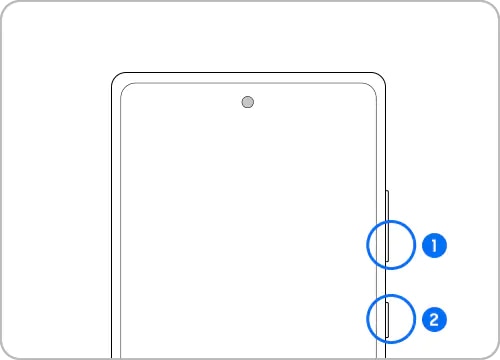
① Volume down key
② Side key
Note: Press and hold the Volume down key and Side key to turn off your device. After your device completely turns off, you can turn on your device with the same method.
Check 4. Display damage due to external impact
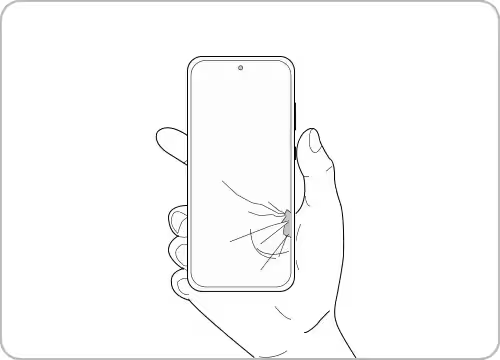
Your screen may not function properly if it has been damaged due to an external impact. If this is the case, stop using your device and take it to your nearest service center for repair.
Useful display settings
Adjust font size and style
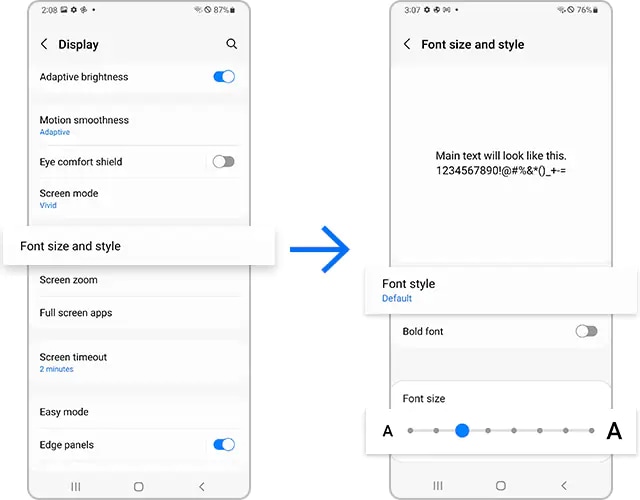
You can adjust your font size and style according to your preferences or needs. Follow the steps below to change the size and style of your font.
Step 1. From Settings, navigate to Display, then tap Font size and style.
Step 2. As desired, adjust the Font style and Font size.
Adjust Screen zoom
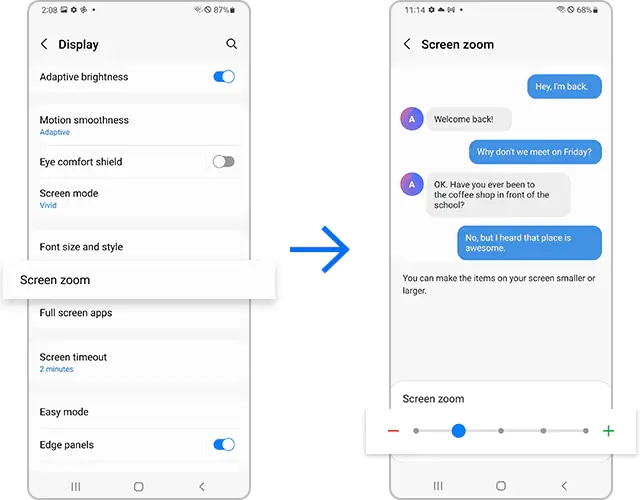
You can adjust settings to make your content appear smaller or bigger on your screen. Refer to the following guide to adjust your screen zoom.
Step 1. From Settings, navigate to Display, then tap Screen zoom.
Step 2. Using the Screen zoom (plus/minus bar) on the bottom of the screen, adjust your Screen zoom.
Adjust the screen ratio according to the app in use
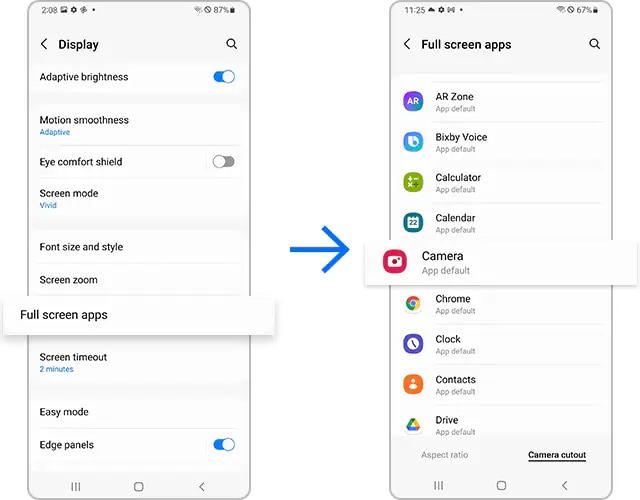
When watching a video, you may prefer a higher screen ratio. However, a smaller screen ratio that requires less range of motion may be more convenient when texting or using a messenger application. Try adjusting the screen ratio according to the app you are using.
Step 1. From Settings, navigate to Display, then tap Full screen apps.
Step 2. Tap Camera cutout, then select the apps that you would like to adjust the screen ratio for.
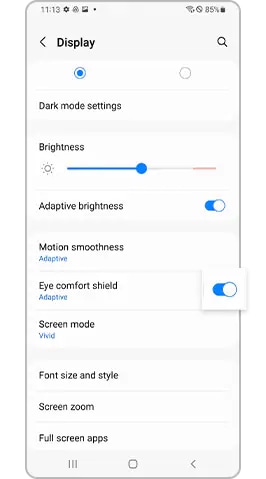
Disable the Eye comfort shield setting
Is your display color too warm? Try disabling the Eye comfort shield setting.
Note: Device screenshots and menus may vary depending on the device model and software version.

Thank you for your feedback!
Please answer all questions.
Contact Info
Digital Service Center
![DSC icon image]()
![DSC icon image]()


Scan to access
WhatsApp
![WhatsApp image icon]()
![WhatsApp image icon]()


Available 24 Hours / 7 days
WhatsApp@ 1-800-5-726-7864
Scan to access
Chat
![Samsung India Support WebChat icon]()
![Samsung India Support WebChat icon]()


Languages offered: English/ हिन्दी/ Indian Regional Languages


Remote Service
![Image of RM icon]()
![Image of RM icon]()


CEO Office
![Image of CEO icon]()
![Image of CEO icon]()


Phone Support (India)
![image of phone dialer]()
![image of phone dialer]()


Phone Support (Bangladesh, Sri Lanka, Nepal)
![Image of caller icon]()
![Image of caller icon]()
RC01_Static Content : This text is only displayed on the editor page