How to troubleshoot apps that will not open on your Samsung Galaxy
If an application downloaded from the Galaxy Store fails to open or stops responding, you can perform several troubleshooting steps to try to restore functionality. These options may range from clearing temporary application data to reaching out directly to the app developer for support.

Clearing the application data can reset the app to its default installation state and often fixes crashes or launch failures.
Note: Clearing application data will permanently remove all saved settings, accounts, and progress associated with the app. Ensure any critical information is backed up before proceeding.


Step 1. Open Settings.


Step 2. Tap Apps.


Step 3. Tap the application that is failing to open.


Step 4. Tap Storage.


Step 5. Tap Clear data.


Step 6. Tap Delete > Restart the app to see if it opens normally.
If clearing the data does not solve the issue, the application files may be corrupted. Uninstalling and performing a fresh installation from the Galaxy Store can help ensure you have the latest stable build.
Note: Reinstalling the application will remove all saved data stored locally within the app.


Step 1. Touch and hold the problematic app icon.


Step 2. Tap Uninstall.


Step 3. Tap Uninstall.


Step 4. Open the Galaxy Store app.


Step 5. Tap the Search bar in the upper right corner.


Step 6. Search the name of the application into the search field.


Step 7. Tap the Install button.


Step 8. Once installation is complete, tap the Open button (the play icon).
If the application continues to fail after reinstalling, there may be an unresolved software bug or compatibility issue with your current Android version. You can try contacting the developer directly. Seller’s info may be found via Galaxy Store for the app Sellers that registered the info with the Galaxy Store.


Step 1. Open the Galaxy Store app.


Step 2. Tap the Search icon in the upper right corner.


Step 3. Search for the app.


Step 4. Tap the app to open its details page.


Step 5. Tap Overview.


Step 6. Scroll down to view the seller and developer contact details.
Thank you for your feedback!
Please answer all questions.
Contact Info
Digital Service Center
![DSC icon image]()
![DSC icon image]()


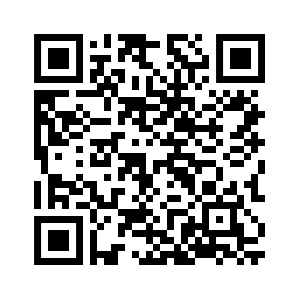
Scan to access
WhatsApp
![WhatsApp image icon]()
![WhatsApp image icon]()


Available 24 Hours / 7 days
WhatsApp@ 1-800-5-726-7864
Scan to access
Chat
![Samsung India Support WebChat icon]()
![Samsung India Support WebChat icon]()


Languages offered: English/ हिन्दी/ Indian Regional Languages


Remote Service
![Image of RM icon]()
![Image of RM icon]()


CEO Office
![Image of CEO icon]()
![Image of CEO icon]()


Phone Support (India)
![image of phone dialer]()
![image of phone dialer]()


Phone Support (Bangladesh, Sri Lanka, Nepal)
![Image of caller icon]()
![Image of caller icon]()
RC01_Static Content : This text is only displayed on the editor page