How to setup the Universal Remote in TV
Last Update date : May 26. 2026

Switching remotes for different devices can be inconvenient. A universal remote simplifies this, but setup is often complex. The Samsung One Remote Control eliminates this hassle by automatically detecting and controlling all connected devices without extra setup. Now, manage everything with just one remote, ending the search for the right one every time.
Setup your Universal Remote
1
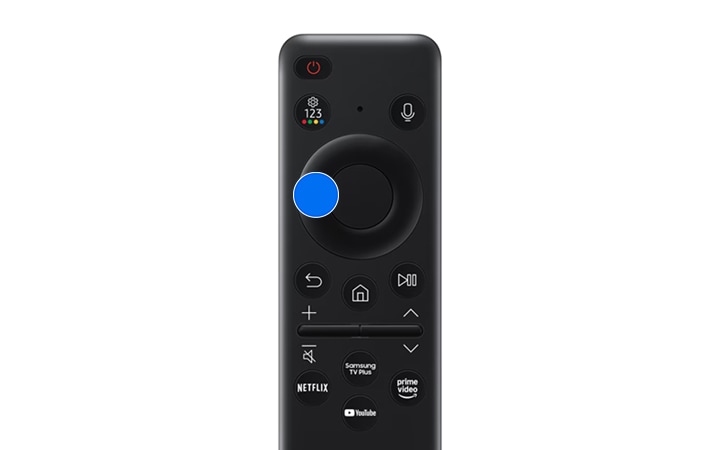
From the Home screen, press left on the remote.
![image showing to press left key]()
2
Navigate to and select Connected Devices.
![select connected devices option]()

3
Select Setup.
![select setup for universal remote]()

4
Then, select Start to setup your Samsung Smart Remote as a universal remote
Note: Before you start, turn on the device that you want to add. Also, make sure that the connected device is placed near the TV and there are no obstacles between the device and remote.
5
Select your device type and follow the on-screen instructions to complete the setup and register the device
6
Your device will now be successfully connected to your remote.
Note:
- This function may not be supported depending on the model or geographical area.
- Screens and images are simulated.
- This feature may not be supported on some models, if an external device is connected directly to the screen without using Wireless One Connect.
- You can also use the Anynet+ (HDMI-CEC) function to operate external Samsung devices with your TV's remote control without any additional setup. For more information, refer to "Using Anynet+ (HDMI-CEC)".
- Specific external devices connected to the TV may not support the universal remote feature.
- Do not place any obstacles in front of an external device and TV's logo. It may cause improper transmitted signals from the remote control.
- If you have difficulty controlling external devices with the Universal Remote, try adjusting the positions of the external devices.
- This function may not operate properly depending on the TV installation environment and the features of external devices.
Thank you for your feedback!
Please answer all questions.
Contact Info
Digital Service Center
![DSC icon image]()
![DSC icon image]()


Get customized support, access to DIY videos and FAQs, or schedule a callback request to connect with an expert.
Scan to access
Scan to access
WhatsApp
![WhatsApp image icon]()
![WhatsApp image icon]()


WhatsApp us for services-related interaction.
Languages offered : English/ हिन्दी/ Indian Regional Languages
Available 24 Hours / 7 days
WhatsApp@ 1-800-5-726-7864
Scan to access
Languages offered : English/ हिन्दी/ Indian Regional Languages
Available 24 Hours / 7 days
WhatsApp@ 1-800-5-726-7864
Scan to access


Remote Service
![Image of RM icon]()
![Image of RM icon]()


Remote diagnostics by our specially trained technicians for your Galaxy device and Samsung TV
CEO Office
![Image of CEO icon]()
![Image of CEO icon]()


Share feedback to CEO office & relevant team will get in touch with you promptly.
Phone Support (India)
![image of phone dialer]()
![image of phone dialer]()


Available: 9 AM to 7 PM (All 7 days)
Phone Support (Bangladesh, Sri Lanka, Nepal)
![Image of caller icon]()
![Image of caller icon]()
RC01_Static Content : This text is only displayed on the editor page