How does SmartThings Find (Find My Mobile) work?
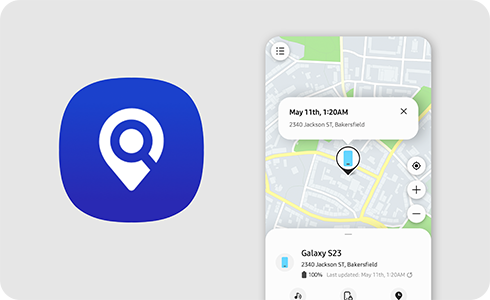
How Does SmartThings Find Work on Samsung Galaxy Devices?
SmartThings Find is Samsung's integrated device tracking service that allows you to locate, lock, and erase data on lost or stolen Galaxy devices. Formerly known as Find My Mobile, this service works seamlessly across Samsung accounts and compatible devices to protect your data and ensure device security.
1. What Is SmartThings Find and How Does It Work?
SmartThings Find is a cloud-based service that enables users to track and manage their Samsung devices remotely. Once linked to your Samsung account, it provides real-time location tracking, remote locking, and data erasure capabilities for your Galaxy devices.
- Automatically activated when you sign in to your Samsung account on a compatible device.
- Accessible via the SmartThings Find website or the SmartThings app on another Samsung device.
- Requires an active internet connection unless offline finding is enabled.
2. How to Activate SmartThings Find on Your Device
To use SmartThings Find, ensure your Samsung account is registered and the service is enabled:
- Open Settings on your Samsung Galaxy device.
- Go to Samsung account > Find my mobile.
- Enable the Find My Mobile option.
- Turn on Offline finding and Send last location for enhanced tracking.
Note: These settings are automatically activated upon Samsung account registration but can be customized in Settings.
3. How to Locate a Lost Samsung Galaxy Device
If your device is lost or stolen, follow these steps to find it:
- Visit the SmartThings Find website or open the SmartThings app on another Samsung device.
- Sign in with your Samsung account.
- Select the lost device from the registered devices list.
- Use the Find feature to view the device's current or last known location.
For offline devices, the last known location will be displayed if Send last location was enabled.
4. What Features Are Available on SmartThings Find?
SmartThings Find offers several security features to protect your device and data:
- Lock Screen: Remotely lock your device to prevent unauthorized access. Set a custom message and contact number for recovery.
- Erase Data: Permanently delete all data on the device, including your Samsung account, rendering it unusable for tracking.
- SIM Card Change Alert: Receive notifications if the SIM card on your lost device is replaced.
5. Why Does SmartThings Find Require Specific Settings?
SmartThings Find relies on certain settings to function effectively:
- Internet Connection: Required for real-time tracking unless offline finding is enabled.
- Offline Finding: Allows your device to be located by nearby Galaxy devices even without an internet connection.
- Send Last Location: Sends the device's last known location before losing connectivity or when the battery drops below 5%.
6. Supported Samsung Galaxy Devices
SmartThings Find is compatible with most modern Samsung Galaxy devices, including:
Galaxy S24, Galaxy S25, Galaxy S26, Galaxy Z Fold, Galaxy Z Flip, and Galaxy A series devices.
7. Additional Things to Check
Ensure these conditions are met for optimal functionality:
- Your Samsung account is active and linked to the device.
- Location services are enabled on the lost device.
- The device is powered on or has sufficient battery life for offline tracking.
Related Samsung Support Topics
Thank you for your feedback!
Please answer all questions.