How to activate Bixby Voice on a Galaxy phone
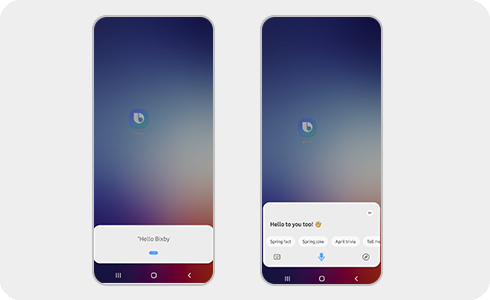
How to Activate Bixby Voice on Samsung Galaxy Devices
To activate Bixby Voice on your Samsung Galaxy device, you can either long-press the side button or open the Bixby app. Ensure you're logged into your Samsung account for full functionality.
1. How to Activate Bixby Voice Using the Side Button
Bixby Voice can be quickly activated using the side button on your Samsung Galaxy device. Follow these steps:
- Press and hold the side button on your device.
- Wait for the Bixby Voice interface to load.
- Release the button and start issuing voice commands.
2. How to Activate Bixby Voice Using the Bixby App
If you prefer using the Bixby app, follow these steps:
- Open the Samsung folder on your home screen.
- Tap the Bixby app icon.
- Press the Start button to activate Bixby Voice.
3. Additional Things to Check
- Ensure you're logged into your Samsung account, as Bixby Voice requires this for full functionality.
- Verify that your device supports Bixby Voice, as some older models may not have this feature.
- Check for software updates, as Bixby Voice may require the latest firmware version.
4. Supported Samsung Galaxy Devices
Bixby Voice is available on most Samsung Galaxy devices, including the Galaxy S series (S24, S25, S26), Galaxy Z Fold, Galaxy Z Flip, and Galaxy A series. Refer to your device's specifications for confirmation.
5. Why Bixby Voice Might Not Work
- The side button may be assigned to another function, such as launching the camera or enabling power-saving mode.
- Your device might not support Bixby Voice due to regional restrictions or hardware limitations.
- A software glitch could prevent Bixby Voice from activating properly.
Related Samsung Support Topics
Thank you for your feedback!
Please answer all questions.