How do I back up data to Samsung Cloud?
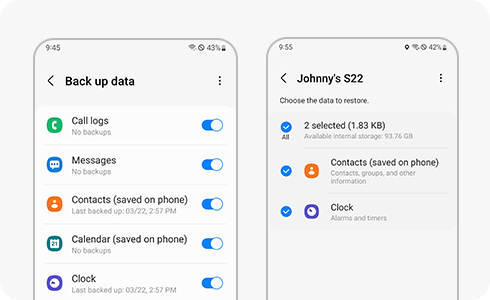
How to Backup or Restore Data on Samsung Galaxy Devices Using Samsung Cloud?
Samsung Cloud provides a convenient way to backup and restore your data on Samsung Galaxy devices. Whether you want to manually save your data or set up automatic backups, this guide will walk you through the process step by step.
1. How to Back Up Data on Samsung Galaxy Devices
To manually back up your data on a Samsung Galaxy device, follow these steps:
- Open the Settings app on your device.
- Scroll down and tap on Accounts and Backup.
- Select Samsung Cloud.
- Tap on Back up now to start the backup process.
For automatic backups, ensure that your device meets the following conditions:
- The device must be charging.
- The screen must be off.
- The device must be connected to Wi-Fi.
2. How to Set Up Auto Backup on Samsung Galaxy Devices
To enable auto backup on your Samsung Galaxy device, follow these steps:
- Open the Settings app on your device.
- Scroll down and tap on Accounts and Backup.
- Select Samsung Cloud.
- Tap on Auto Backup.
- Toggle on the items you want to back up automatically.
3. What Items Can Be Backed Up on Samsung Galaxy Devices?
Samsung Cloud supports the backup of the following items:
- Phone: Call and message history.
- Messages: Enhanced messages, multimedia messages, and text messages (some large files may not be backed up).
- Contacts: Contacts, email addresses, and business cards (saved on the device).
- Calendar: Schedules, events, and tasks (saved on the device).
- Clock: Alarm, world clock, and timer.
- Settings: Accessibility settings, ringtones (excluding default ringtones), Samsung keyboard options, Wi-Fi settings, paired Bluetooth devices, and Always on Display settings.
- Home Screen: Layout, wallpapers (excluding default wallpapers), and Samsung DeX settings.
- Apps: Installation files and Samsung's app settings.
- Voice Recorder: Recordings.
4. Supported Samsung Galaxy Devices
Samsung Cloud backup and restore features are available on most Samsung Galaxy devices, including the Galaxy S24, Galaxy S25, Galaxy S26, Galaxy Z Fold, Galaxy Z Flip, and Galaxy A series. However, the availability of specific features may vary depending on the device model, operating system version, and region.
5. Additional Things to Check
If you encounter issues with Samsung Cloud backup or restore, consider the following:
- Ensure your device has sufficient storage space for the backup.
- Verify that your device is connected to a stable Wi-Fi network.
- Check if your Samsung account is properly linked to your device.
6. Related Samsung Support Topics
Thank you for your feedback!
Please answer all questions.