How do I use Smart Switch to transfer data?
How to Use Smart Switch to Transfer Data to Your Samsung Galaxy Device
Smart Switch makes transferring data from your old device to a new Samsung Galaxy phone simple and secure. Whether you're switching from Android, iPhone, or Windows, this guide explains how to use Smart Switch effectively, including setup steps, supported content types, and troubleshooting tips.
1. What Is Smart Switch?
Smart Switch is a built-in Samsung tool designed to transfer data between devices seamlessly. It supports transfers from:
- Android devices (including Samsung Galaxy phones)
- iPhones (iOS devices)
- Windows PCs
It transfers contacts, messages, photos, apps, settings, and more with minimal effort.
2. How to Open Smart Switch on Your Galaxy Device
To start using Smart Switch:
- Turn on your new Samsung Galaxy device.
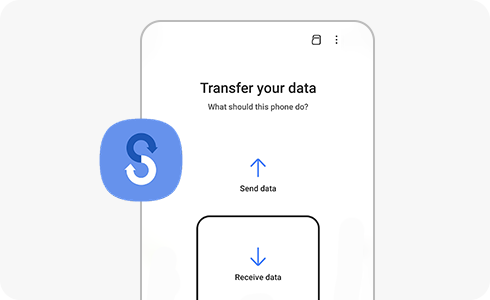
- Follow the setup wizard until you reach the "Transfer Data" screen.
- Select "Smart Switch" as your transfer method.
- Choose the type of device you're transferring from (Android, iPhone, or Windows).
If Smart Switch isn't pre-installed on your device, download it from the Google Play Store.
3. Supported Samsung Galaxy Devices
Smart Switch works on most Samsung Galaxy devices, including:
- Galaxy S24, S25, S26 series
- Galaxy Z Fold and Z Flip series
- Galaxy A series (A14, A15, etc.)
Check your device's settings to confirm compatibility.
4. Why Use Smart Switch?
Smart Switch simplifies data migration by:
- Automatically detecting connected devices
- Offering wireless and cable-based transfer options
- Preserving app data and settings where possible
5. What Can Smart Switch Transfer?
Smart Switch can transfer:
- Contacts and call logs
- Messages and media (photos, videos)
- App data (excluding encrypted content)
- Calendar entries and alarms
- Wi-Fi and Bluetooth settings
6. What Can't Smart Switch Transfer?
Limitations include:
- Encrypted or secure data (e.g., WhatsApp chats)
- DRM-protected content (e.g., purchased movies or music)
- App-specific login credentials (e.g., mobile banking apps)
- Apps not available on the Google Play Store
7. Additional Things to Check
Before starting:
- Ensure both devices are fully charged or connected to power.
- Verify that your old device has enough storage space for the transfer.
- Update Smart Switch to the latest version if prompted.
8. Related Samsung Support Topics
Thank you for your feedback!
Please answer all questions.