How to fix camera issues on a Galaxy phone
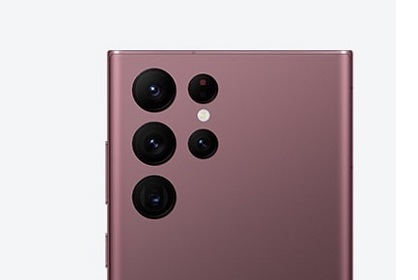
Why is the Samsung Galaxy Camera Not Working?
If your Samsung Galaxy device displays a "Camera Failed" message, freezes during use, or shows no preview, it's often due to software issues rather than hardware damage. Common causes include app conflicts, outdated software, or insufficient storage. Follow these steps to resolve the issue.
1. Why is the Samsung Galaxy Camera Not Working?
- App conflicts: Third-party apps may interfere with the Camera app.
- Software bugs: Outdated software can cause camera malfunctions.
- Storage issues: Insufficient storage can prevent the Camera app from functioning properly.
- Corrupted cache: Temporary files may disrupt camera performance.
2. How to Fix the Samsung Galaxy Camera Issue
- Check for Software Updates: Ensure your device and Camera app are updated to the latest versions.
- Restart Your Device: Turn off your Samsung Galaxy, wait 10 seconds, and turn it back on.
- Clear Camera App Cache:
- Go to Settings > Apps > Camera.
- Tap Storage > Clear Cache.
- Enter Safe Mode:
- Press and hold the Power key until the Power menu appears.
- Tap and hold Power off until the Safe mode prompt appears.
- Select Safe mode to disable third-party apps.
- Test in Safe Mode: If the camera works in Safe mode, a third-party app is likely causing the issue.
- Uninstall Recent Apps: Remove apps installed just before the issue started, one by one, restarting your device after each uninstallation.
- Reset to Factory Settings: If the issue persists, back up your data and reset your device to factory settings.
3. Additional Things to Check
- Check for physical obstructions on the camera lens.
- Ensure your device has sufficient storage space.
- Verify that the Camera app permissions are enabled in Settings > Apps > Camera > Permissions.
4. Supported Samsung Galaxy Devices
This guide applies to Samsung Galaxy devices, including Galaxy S24, Galaxy S25, Galaxy S26, Galaxy Z Fold, Galaxy Z Flip, and Galaxy A series.
5. Related Samsung Support Topics
Thank you for your feedback!
Please answer all questions.