How to Power Off a Galaxy Phone
How to Turn Off a Samsung Galaxy Phone
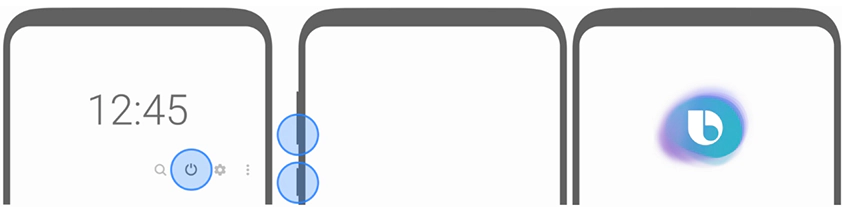
If your Samsung Galaxy phone isn't turning off normally, you can use alternative methods such as pressing the Side key, accessing the Quick settings panel, or using a combination of keys for emergency shutdowns. These methods work across most Galaxy devices, including the Galaxy S24, Galaxy Z Fold, and Galaxy A series.
1. How to Turn Off Your Samsung Galaxy Phone Using the Side Key
Most Samsung Galaxy devices, including the Galaxy S25, Galaxy Z Flip, and Galaxy A series, allow you to power off using the Side key:
- Press and hold the Side key for 2–3 seconds until the power menu appears.
- Tap Power off to shut down your device.
- If the Side key doesn't respond, ensure it's not stuck or damaged.
2. How to Restart Your Samsung Galaxy Phone
Restarting your phone can resolve temporary software glitches. Follow these steps:
- Open the power menu by pressing and holding the Side key.
- Tap Restart to reboot your device.
- Restarting clears cached data and refreshes system performance.
3. How to Customize the Side Key Power-Off Menu
You can configure the Side key to show the power menu automatically:
- Open Settings on your Samsung Galaxy device.
- Go to Advanced features → Side key.
- Select Power off menu under the Press and hold option.
- This setting ensures the power menu appears every time you press and hold the Side key.
4. How to Turn Off Your Phone Without a Dedicated Power Key
If your device lacks a physical power button, use the Quick settings panel:
- Swipe down from the top of the screen to open the Quick settings panel.
- Tap the Power icon.
- Select Power off to shut down your phone.
- This method works on foldable devices like the Galaxy Z Fold and newer Galaxy A models.
5. How to Make an Emergency Call While Your Phone is Off
In emergencies, you can access emergency services even when your phone is powered off:
- Press and hold the Side key and Volume Down key simultaneously for 3 seconds.
- Tap Emergency call to contact local emergency services.
- Ensure your medical information is updated in Settings > Users and accounts > Emergency information.
Supported Samsung Galaxy Devices
These methods are compatible with the following devices:
Galaxy S24, Galaxy S25, Galaxy S26, Galaxy Z Fold, Galaxy Z Flip, Galaxy A series (A15, A25, etc.)
Related Samsung Support Topics
Thank you for your feedback!
Please answer all questions.