How to use a Galaxy watch to control your Galaxy phone's camera?
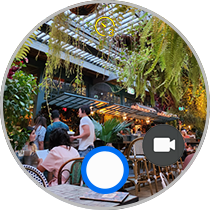
You can use your Samsung Galaxy Watch to remotely control your Galaxy phone's camera, allowing you to capture photos and videos from a distance. This feature works seamlessly across compatible Galaxy devices and is perfect for group shots, long-distance photography, or creative angles.
1. How to Use Your Galaxy Watch to Control Your Galaxy Phone's Camera
- Ensure both your Galaxy Watch and Galaxy phone are connected to the same Wi-Fi network or Bluetooth.
- Open the Camera app on your Galaxy phone.
- On your Galaxy Watch, open the Galaxy Wearable app or the Camera Remote app.
- Select the connected phone from the list of available devices.
- Use the watch screen to view the live camera feed from your phone.
- Tap the shutter button on your watch to take photos or start/stop video recording.
2. Supported Samsung Galaxy Devices
This feature is supported on the following devices:
- Galaxy Watch 6 series and later
- Galaxy S24, S25, S26 series
- Galaxy Z Fold and Z Flip series
- Galaxy A series (models with compatible software)
3. Why Use This Feature?
- Capture group photos without needing a tripod or timer.
- Take creative shots from unique angles or distances.
- Record videos hands-free while monitoring the live feed.
4. Additional Things to Check
- Ensure both devices are running the latest software version.
- Verify that Bluetooth or Wi-Fi connectivity is stable.
- Restart both devices if the connection is unstable.
5. Related Samsung Support Topics
Thank you for your feedback!
Please answer all questions.