How do I open email attachments on a Galaxy phone?
How to use the Samsung Email app and open attachments on a Galaxy phone
The Samsung Email app allows you to manage multiple email accounts, send and receive emails, and open attachments seamlessly on your Galaxy phone. Whether you're using a Galaxy S24, Galaxy Z Fold, or Galaxy A series device, this guide covers everything from setting up your email accounts to troubleshooting attachment issues.
1. How to set up an email account in the Samsung Email app
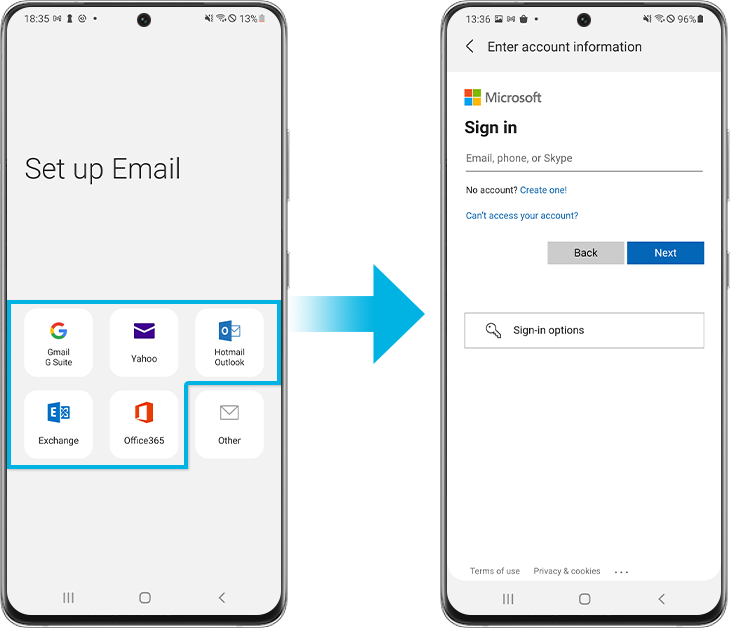
To use the Samsung Email app, you'll first need to add your email account. Here's how to do it:
-
Open the Samsung Email app on your Galaxy phone.
-
Tap on the Add Account option.
-
Select the type of email account you want to add (e.g., Google, Yahoo, Microsoft).
-
Enter your email address and password, then tap Sign In.
-
If prompted, approve the app's access permissions to complete the setup.
For email providers not listed (e.g., custom or corporate email accounts), you can manually configure your account settings:
-
Select Other in the account setup screen.
-
Enter your email address and password, then tap Manual Setup.
-
Choose the account type (IMAP is recommended for syncing across devices).
-
Enter the incoming and outgoing server details provided by your email provider.
-
Tap Sign In to complete the setup.
- Why this matters: Automatic setup works for popular email providers, while manual setup ensures compatibility with custom or corporate email services.
2. How to compose and send emails with attachments
To send an email with attachments using the Samsung Email app:
-
Open the Samsung Email app and tap the Compose icon.
-
Enter the recipient's email address in the To field.
-
Add a subject and type your message in the body.
-
Tap the Attachment icon (paperclip) to add files from your phone.
-
Select the files you want to attach and tap Done.
-
Tap the Send icon to send the email.
Attachments are saved in the Downloads folder in the My Files app after being sent or received.
3. How to open email attachments on your Galaxy phone
To open an email attachment:
-
Open the email containing the attachment.
-
Tap the attachment to open it directly or tap Save to download it.
-
If prompted, select an app to open the file.
If the attachment doesn't open, check the file format and ensure you have the necessary app installed. For example, PDFs require a PDF reader, while DOCX files need a word processor.
- Troubleshooting tip: If the attachment still won't open, try removing and re-adding your email account to resolve sync issues.
4. Supported Samsung Galaxy devices
The Samsung Email app is compatible with most Galaxy devices, including the Galaxy S24, Galaxy S25, Galaxy S26, Galaxy Z Fold, Galaxy Z Flip, and Galaxy A series. Ensure your device's software is updated to the latest version for optimal performance.
5. Additional things to check
If you're experiencing issues with the Samsung Email app, consider the following:
- Storage space: Low storage can prevent emails and attachments from syncing properly.
- Network connection: A stable Wi-Fi or mobile data connection is required for email syncing.
- App updates: Ensure the Samsung Email app is updated to the latest version via the Galaxy Store or Google Play Store.
Related Samsung support topics
Thank you for your feedback!
Please answer all questions.