How to mirror your PC screen to a Samsung TV
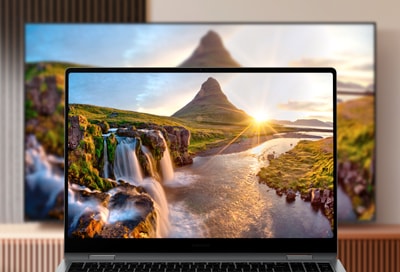
How to Mirror Your Samsung Galaxy Device or PC Screen to a Samsung TV
To mirror your Samsung Galaxy device or PC screen to a Samsung TV, ensure both devices are connected to the same Wi-Fi network and follow the steps below for seamless screen sharing. This guide covers methods for Windows, Mac, and Samsung Galaxy devices.
1. How to Mirror Your Samsung Galaxy Device to a Samsung TV
Screen mirroring from your Samsung Galaxy smartphone or tablet to a Samsung TV is simple using the Smart View feature:
- Open the Quick Settings panel on your Samsung Galaxy device by swiping down from the top of the screen.
- Tap on the Smart View icon.
- Select your Samsung TV from the list of available devices.
- Choose between Mirror (to display the same content) or Duplicate (to extend your screen).
- Your Samsung Galaxy screen will now be mirrored to the TV.
- Ensure your Samsung Galaxy device and TV are on the same Wi-Fi network for successful pairing.
2. How to Mirror Your Windows PC to a Samsung TV
For Windows PC users, you can use the built-in Screen Sharing feature:
- Press Windows + P to open the projection menu.
- Select Connect to a wireless display.
- Choose your Samsung TV from the list of available devices.
- Select Mirror to display the same content or Extend to use the TV as a secondary screen.
- Your PC screen will now be mirrored to the TV.
- Make sure your PC and TV are connected to the same Wi-Fi network and that Miracast is enabled on your TV.
3. How to Mirror Your Mac to a Samsung TV
Mac users can use the built-in Screen Sharing feature:
- Click the Apple menu and select System Settings.
- Go to Displays and enable AirPlay Display.
- Click the AirPlay icon in the menu bar and select your Samsung TV.
- Choose between Mirror (to display the same content) or Extend (to use the TV as a secondary screen).
- Your Mac screen will now be mirrored to the TV.
- Ensure your Mac and TV are connected to the same Wi-Fi network and that Bluetooth is enabled for pairing.
4. Additional Things to Check
- Update your Samsung TV firmware to the latest version for optimal compatibility.
- Restart both devices if you encounter connectivity issues.
- Check your Wi-Fi network strength and stability for smooth screen mirroring.
5. Supported Samsung Galaxy Devices
Screen mirroring via Smart View is supported on most Samsung Galaxy devices, including:
Galaxy S24, Galaxy S25, Galaxy S26, Galaxy Z Fold, Galaxy Z Flip, and Galaxy A series devices.
6. Related Samsung Support Topics
Thank you for your feedback!
Please answer all questions.