How to Turn the TV Microphone On or Off
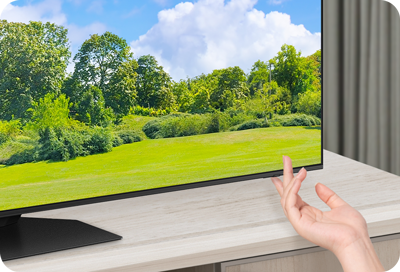
How to Enable or Disable the Microphone on Samsung Smart TVs
To enable or disable the microphone on your Samsung Smart TV, locate the physical microphone switch on the TV frame, typically found at the bottom center or right side. Toggle the switch to activate or deactivate voice input features such as Bixby. A pop-up notification will confirm the current microphone status, ensuring seamless control over voice functionality.
1. How to Enable or Disable the Microphone on Samsung Smart TVs
- Connect your device to the network: Ensure your Samsung Smart TV is connected to a stable Wi-Fi network. Voice features like Bixby require internet connectivity to function properly.
- Locate the microphone switch: Find the microphone switch on your TV. It is typically positioned at the bottom center or bottom right side of the TV frame. The design may vary depending on your TV model.
- Move the switch into the opposite position: Toggle the switch left or right to change the microphone status. Moving it to one side turns the microphone on, while moving it to the other side turns it off.
- Check the TV notification: A pop-up window will appear on the screen indicating whether the microphone is on or off. If the microphone is off, voice input features will not work. Toggle the switch back to enable it.
2. Why the Microphone Switch Might Not Work
- Physical obstruction: Dust or debris around the switch may prevent it from functioning correctly. Clean the area gently with a soft cloth.
- Firmware issues: Outdated TV firmware can cause hardware features like the microphone switch to malfunction. Check for software updates in the Settings menu.
- Voice feature limitations: Some Samsung Smart TV models do not support voice input features. Verify compatibility in the user manual or support documentation.
- Network connectivity: Poor or unstable internet connections can disrupt voice services like Bixby. Ensure your TV is connected to a reliable network.
3. Supported Samsung Smart TV Models
The microphone switch is available on select Samsung Smart TV models, including:
- Galaxy View series
- Frame series
- QLED series
- Neo QLED series
- Crystal UHD series
Note: Always refer to your TV's user manual for specific details.
4. Additional Things to Check
- Privacy settings: Ensure that microphone permissions are enabled in the TV's privacy settings. Navigate to Settings > General > Privacy to verify microphone access.
- External devices: If you're using external microphones or soundbars, disconnect them temporarily to test the built-in microphone functionality.
- Bixby availability: Confirm that Bixby is installed and activated on your TV. Visit Settings > Preferences > Bixby to enable the service.
5. Related Samsung Support Topics
Thank you for your feedback!
Please answer all questions.