Can't Use Apps from Samsung TV Smart Hub Home
Why can't I use apps from the Samsung TV Smart Hub Home?
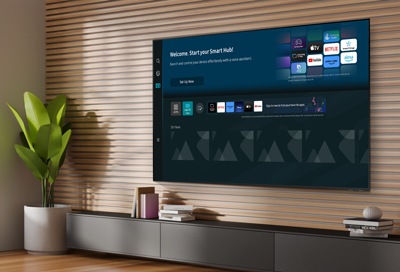
Starting with 2023 Samsung Smart TVs and Smart Monitors, a Samsung Account is required to access the Smart Hub, which includes apps like Netflix, YouTube, and Samsung Health. Without logging in, you can only connect external devices via HDMI or antenna tuners, but Smart Hub apps remain unavailable. To fix this, log in to your Samsung Account and accept the Terms and Conditions on your TV.
1. Why do I need a Samsung Account for Smart Hub apps?
Samsung Smart Hub is a network-based service that requires authentication to access streaming apps, content recommendations, and Samsung services. Without a Samsung Account, the TV cannot verify your identity, limiting access to Smart Hub features.
- Smart Hub apps require authentication for personalized content and secure access.
- Samsung services like Samsung Health, SmartThings, and App Store rely on account integration.
- External devices (HDMI, antenna) work without an account, but Smart Hub apps do not.
2. How do I create or log in to a Samsung Account on my TV?
You can register or log in during the TV's initial setup or later via Smart Hub Home. If you skipped this step, follow these steps:
- Ensure your TV is connected to the internet via Wi-Fi or Ethernet.
- Go to Settings > Accounts > Sign in.
- Enter your email and password if you already have a Samsung Account.
- If you don't have an account, select Create Account and follow the prompts.
- Agree to the Terms and Conditions to complete the process.
If you're using a Galaxy phone logged into your Samsung Account, you can log in by scanning the QR code on the TV with your phone.
3. What if I skipped network setup during initial setup?
If you skipped network configuration, you must first connect your TV to the internet before logging in:
- Go to Settings > Network > Open Network Settings.
- Select your Wi-Fi network or connect via Ethernet.
- Once connected, return to Accounts to sign in or create an account.
4. Supported Samsung TV models
This requirement applies to 2023 and newer Samsung Smart TVs and Smart Monitors, including:
- Galaxy S24, S25, S26 series (when used with compatible monitors)
- Galaxy Z Fold and Z Flip series (via Smart View)
- QLED, Neo QLED, and Micro LED TVs
- Crystal UHD and The Frame TVs
5. Additional things to check
If you're still unable to access apps after logging in, try these troubleshooting steps:
- Ensure your Samsung Account is verified and active.
- Check for software updates under Settings > Support > Software Update.
- Restart your TV and router to resolve connectivity issues.
- Disable two-step verification temporarily if you're having trouble logging in.
6. Related Samsung support topics
Thank you for your feedback!
Please answer all questions.