Cómo configurar SmartThings Energy y comprobar los dispositivos compatibles en la aplicación SmartThings
La app SmartThings te permite conectar y controlar tus electrodomésticos y dispositivos inteligentes desde un solo lugar. La función de gestión de energía te ayuda a supervisar el consumo, optimizar la eficiencia y administrar fácilmente todos tus dispositivos conectados. Sigue esta guía para añadir el servicio de Energía en la app SmartThings y descubrir qué dispositivos son compatibles.
Mide y verifica el uso de energía en tiempo real con SmartThings Energy configurando el servicio de Energía en la aplicación SmartThings.
1. Navega hasta la aplicación SmartThings y ábrela en tu teléfono, y luego toca la pestaña Vida.
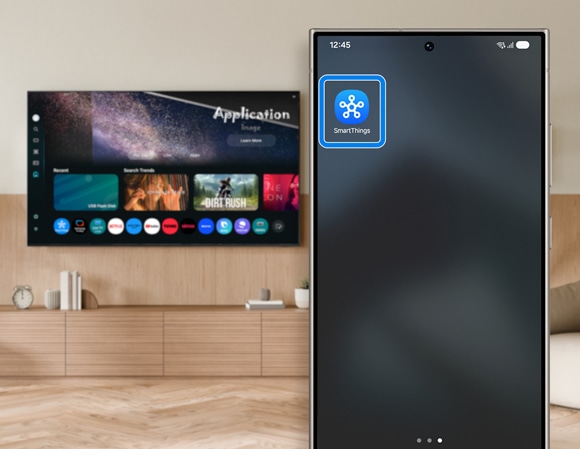
2. Desliza el dedo hacia la opción Energía y selecciónala.
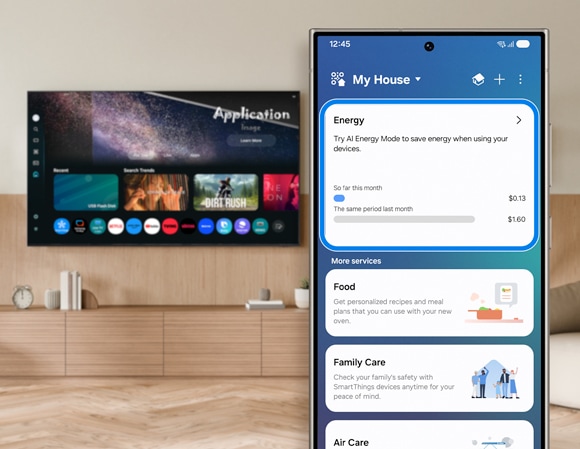
3. Sigue las instrucciones en pantalla para completar el proceso de instalación.
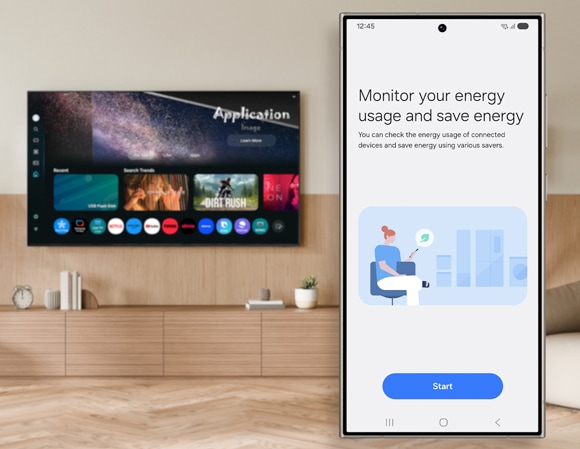
Después de conectar tus dispositivos en la aplicación SmartThings, puedes verificar cuáles son compatibles con SmartThings Energy. Entre los dispositivos compatibles se incluyen aquellos que ofrecen funciones de monitoreo y ahorro de energía.
Nota: Esta función está disponible a partir de las Smart TV Samsung lanzados en 2022 hasta la actualidad
1. Navega hasta la aplicación SmartThings y ábrela en tu teléfono, y luego toca la pestaña Vida.
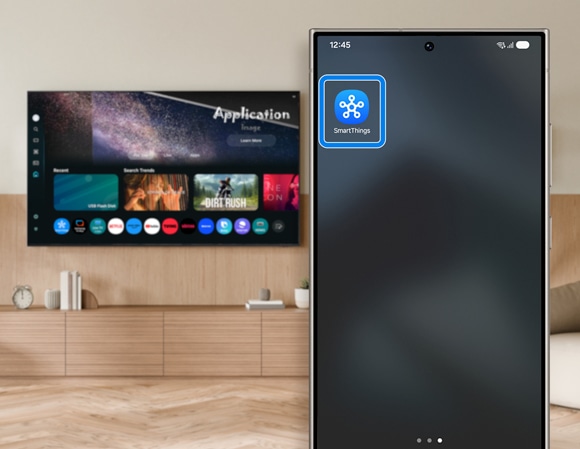
2. Desliza y toca Energía.
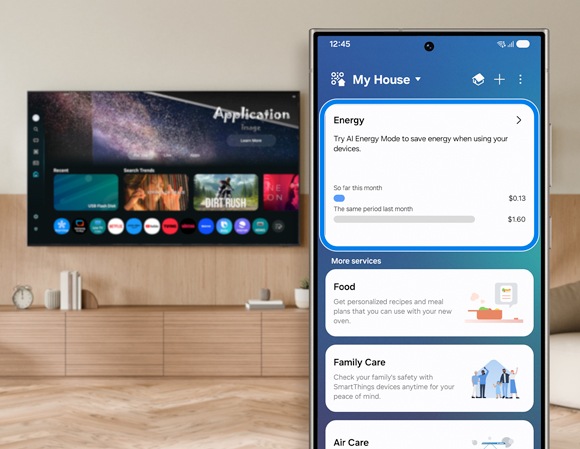
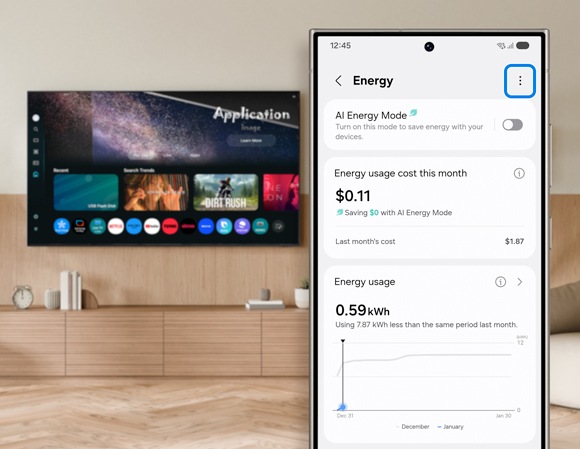
3. Toca el ícono Más opciones (los tres puntos verticales).
4. Seleccione Tus dispositivos compatibles.
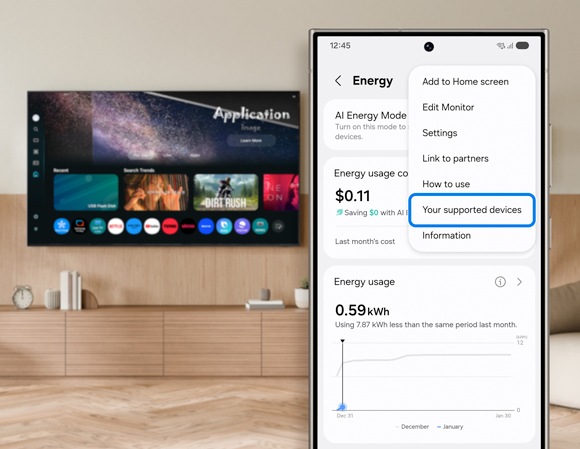
5. Selecciona Dispositivos compatibles para comprobar qué dispositivos son compatibles con SmartThings Energy.
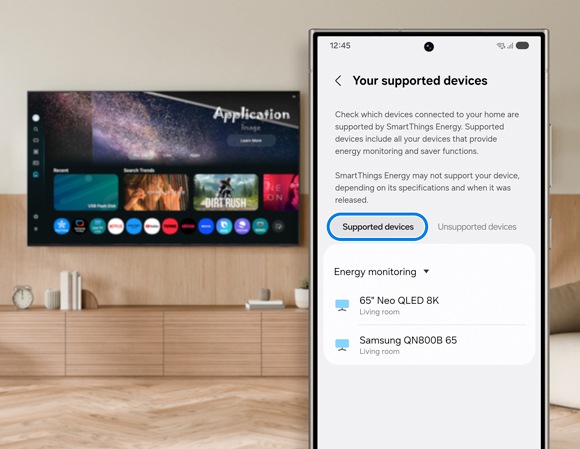
Notas:
- Si tienes problemas con tu Samsung Smart TV, puedes buscar actualizaciones de software disponibles, ya que podrían incluir una solución.
- Las imágenes pueden variar según el país, modelo de tu televisor y la versión de Software.


Centros de servicio


Ubica el centro de servicio Samsung más cercano para la revisión de tu producto.

Gracias por tus comentarios
Por favor, responde todas las preguntas.
Contáctanos
WhatsApp
![]()
![]()


de 08:00 a 21:00 hrs.
LiveChat
![]()
![]()


de 08:00 a 21:00 hrs.
Soporte a Clientes
Habla con nuestros expertos, en un horario de Lunes a Viernes de 9:00 a 20:00 horas.
Soporte presencial
Soporte B2B
(Atención Empresarial)
Comunícate con nuestros expertos.
Atención de 08:00 a 19:00 Horas, Lunes a Sábado.
Asistencia general, soporte técnico y seguimiento de reportes.