How do I enable double tap to turn off the screen?
How to Enable Double Tap to Turn Off Screen on Samsung Galaxy Phones
Double tapping your Samsung Galaxy phone to turn off the screen is a convenient way to lock your device quickly. This feature allows you to bypass pressing the Side Key or Power Button, making it ideal for users who prefer a faster method. Follow the steps below to enable or disable this feature on your device.
1. How to Enable Double Tap to Turn Off Screen
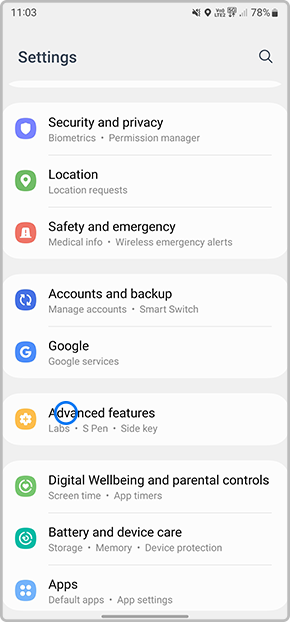
- Open the Settings app on your Samsung Galaxy device.
- Scroll down and tap on Advanced Features or Advanced settings, depending on your device model.
- Select Motions and gestures or Gestures, depending on your device's interface.
- Find and tap on Double tap to turn off the screen.
- Toggle the switch to enable the feature.
2. Why Use Double Tap to Turn Off Screen?
- It provides a quick and efficient way to lock your screen without using the Side Key or Power Button.
- It reduces wear and tear on physical buttons, extending their lifespan.
- It enhances accessibility for users who find pressing buttons difficult.
3. Supported Samsung Galaxy Devices
This feature is available on most modern Samsung Galaxy devices, including:
Galaxy S24, Galaxy S25, Galaxy S26, Galaxy Z Fold, Galaxy Z Flip, and Galaxy A series devices.
4. Additional Things to Check
- Ensure your device's software is up to date, as older versions may lack this feature.
- If the feature does not work, restart your device to refresh system settings.
- Check for third-party apps that might interfere with gesture controls.
5. Related Samsung Support Topics
Thank you for your feedback!
Please answer all questions.