How can I make a payment with my Galaxy Watch?
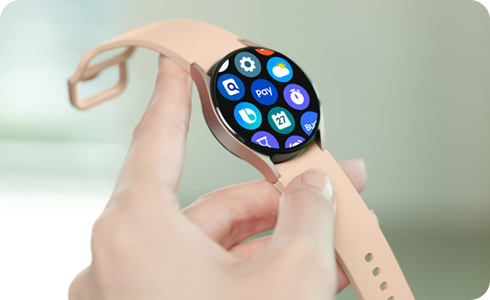
How to Make Payments Using Your Samsung Galaxy Watch
To make payments with your Samsung Galaxy Watch, you'll need to set up Samsung Pay (or Samsung Wallet in newer models) and link your payment card. Once configured, you can use your watch for contactless payments just like a physical card. Follow the steps below to get started.
1. How to Set Up Samsung Pay on Your Galaxy Watch
Before using your Galaxy Watch for payments, ensure the Samsung Pay app (or Samsung Wallet) is installed and configured. Here's how to set it up:
- Press and hold the back key on your watch to open Samsung Pay.
- Tap "OK" to connect your watch to your smartphone.
- On your smartphone, grant all necessary permissions and tap "Start" to begin the setup process.
- Select "Add card" to link your payment card.
- Choose "Add payment card" or "Import card" and follow the on-screen instructions to register your card.
- On your smartphone, tap "Set lock" to create a PIN or pattern for securing Samsung Pay on your watch.
- On your watch, select your preferred lock type (PIN or pattern).
- Enter your PIN or draw your pattern twice to confirm.
- Tap "Next" on your smartphone to complete the setup.
- Note: If you haven't registered a card before, visit the Samsung Support website for detailed guidance.
- Initial setup and card registration steps may vary depending on your region or service provider.
2. How to Change or Remove Your PIN
If you need to change or remove your PIN for Samsung Pay on your Galaxy Watch, follow these steps:
- Open Samsung Pay on your watch.
- Navigate to the settings or security section.
- Select "Change PIN" or "Remove PIN."
- Follow the prompts to set a new PIN or disable the lock feature.
- Setting security to "None" will reset Samsung Pay on your watch.
3. How to Make a Payment with Your Galaxy Watch
Once Samsung Pay is set up, making payments with your Galaxy Watch is simple. Follow these steps:
- Press and hold the back key on your watch and enter your PIN or pattern.
- Swipe left or right to select the payment card you want to use.
- Hold your watch near the NFC reader at the payment terminal.
- Some payments may fail due to network connectivity issues or regional restrictions.
- Samsung Pay availability depends on your country and watch model.
4. Supported Samsung Galaxy Devices
Samsung Pay (and Samsung Wallet) is compatible with most Galaxy Watch models, including the Galaxy Watch4, Galaxy Watch5, Galaxy Watch6, Galaxy Watch7, Galaxy Watch8, Galaxy Z Fold series, and Galaxy Z Flip series. Ensure your device is updated to the latest software version for optimal functionality.
5. Additional Things to Check
If you encounter issues while setting up or using Samsung Pay on your Galaxy Watch, consider the following:
- Ensure your watch and smartphone are connected to the same Wi-Fi network during setup.
- Verify that your payment card is supported by Samsung Pay in your region.
- Restart your watch and smartphone if the app fails to sync or respond.
Related Samsung Support Topics
Thank you for your feedback!
Please answer all questions.