How to make a conference call on your Galaxy phone
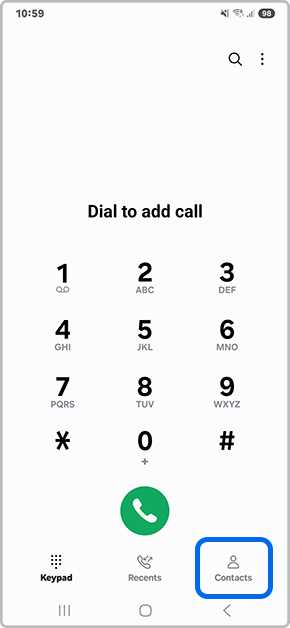
How to Make a Conference Call on Your Samsung Galaxy Phone
To make a conference call on your Samsung Galaxy phone, open the Phone app, initiate the first call, add additional participants, and merge the calls. This feature allows multiple people to join a single call for meetings, group discussions, or personal conversations.
1. How to Start a Conference Call on Samsung Galaxy
- Open the Phone app on your Samsung Galaxy device.
- Enter the phone number or select a contact to initiate the first call.
- Once the first participant answers, tap Add Call on the screen.
- Enter the number or choose another contact and tap the Phone icon to place the second call.
- When the second call connects, tap Merge to combine both calls into a conference.
- To end the conference call, tap End Call.
2. Additional Things to Check
- Ensure your device is connected to a stable network or cellular signal for uninterrupted calls.
- Confirm that your carrier supports conference calling features. Some carriers may require specific plans or services.
- Check for software updates in your device settings to ensure the latest features and bug fixes are installed.
3. Supported Samsung Galaxy Devices
Conference calling is available on most Samsung Galaxy devices, including the Galaxy S24, Galaxy S25, Galaxy S26, Galaxy Z Fold, Galaxy Z Flip, and Galaxy A series. However, availability may vary depending on your carrier and region.
4. Why Conference Calls May Not Work
- Network connectivity issues can prevent successful call merging.
- Outdated software versions may lack the necessary features or contain bugs affecting conference calls.
- Carrier restrictions or limitations on your plan may block conference call functionality.
5. Related Samsung Support Topics
Thank you for your feedback!
Please answer all questions.