How to manage sleeping apps on a Galaxy phone
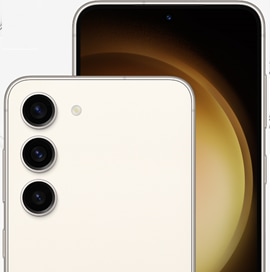
How to Manage Sleeping Apps to Save Battery Life on Samsung Galaxy Devices?
Managing sleeping apps on your Samsung Galaxy device is a practical way to conserve battery life and enhance overall performance. By placing infrequently used apps into sleep mode, you can minimize unnecessary background activity and extend battery longevity.
1. Why Manage Sleeping Apps on Your Galaxy Device?
Background apps often consume battery power, even when not actively in use. Managing sleeping apps helps reduce this drain, especially on devices like the Galaxy S24, Galaxy Z Fold, and Galaxy A series.
- Apps that run in the background can cause battery drain even when you're not using them.
- Sleeping apps stop syncing data, refreshing content, or running notifications in the background.
- Deep sleeping apps won't restart automatically, further reducing power consumption.
2. How to Enable Automatic Sleep Mode for Unused Apps
If you haven't used an app in a while, it will automatically go to sleep to save battery life. Here's how to enable this feature:
- Open the Settings app on your Samsung Galaxy device.
- Scroll down and tap on Battery and device care.
- Select Battery, then tap on App power management.
- Enable the option for Unused apps to sleep automatically.
3. View and Manage Currently Sleeping Apps
You can view all apps currently in sleep mode and decide whether they should stay asleep or be allowed to run in the background:
- Go to Settings > Battery and device care > Battery > App power management.
- Tap on Sleeping apps to see the list of apps currently in sleep mode.
- Select an app and choose between:
- Allow to run in the background: The app can restart and run in the background.
- Deep sleep: The app will remain asleep and won't restart automatically.
4. Set Apps to Never Sleep in the Background
Some apps, like messaging or navigation services, need to run in the background for functionality. You can ensure these apps never sleep:
- Navigate to Settings > Battery and device care > Battery > App power management.
- Tap on Never sleeping apps.
- Select Add apps and choose the apps you want to keep active in the background.
5. Supported Samsung Galaxy Devices
This feature is available on most Samsung Galaxy devices, including the Galaxy S24, Galaxy S25, Galaxy Z Fold, Galaxy Z Flip, and Galaxy A series.
6. Additional Things to Check
Software update issues commonly occur after interrupted downloads, unstable network connections, or low storage warnings.
- Ensure your device has sufficient storage space to allow apps to function properly.
- Regularly review and manage sleeping apps to maintain optimal battery performance.
7. Related Samsung Support Topics
Thank you for your feedback!
Please answer all questions.