How to record workouts on a Galaxy Watch
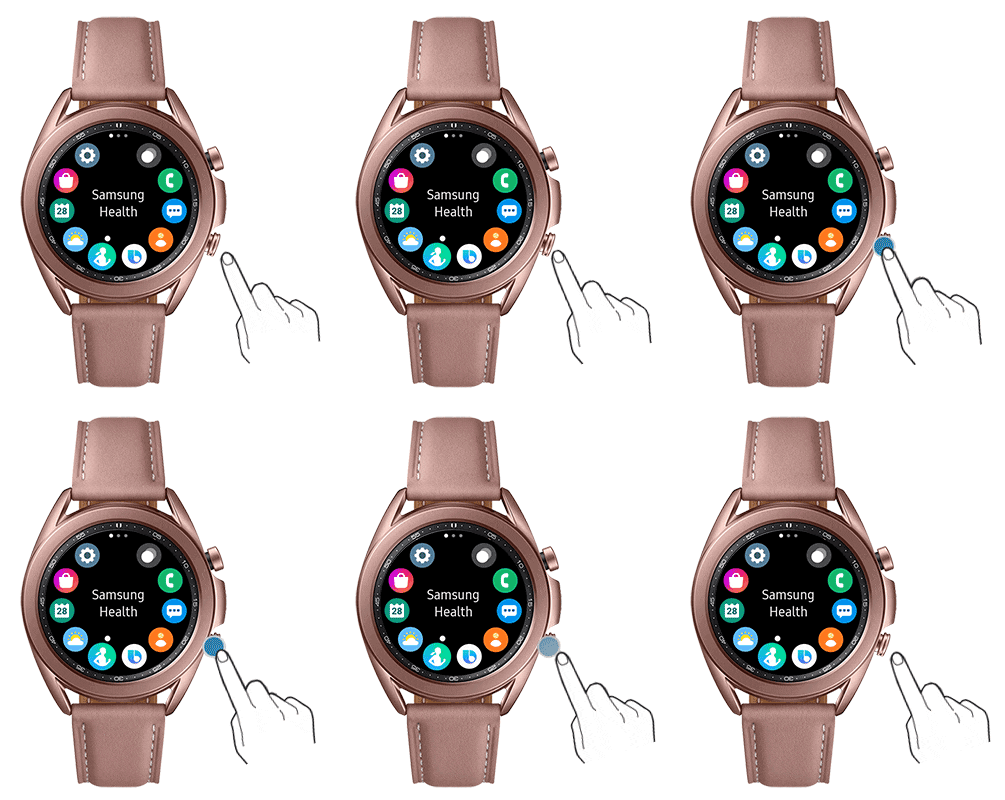
How to Record Workouts on Samsung Galaxy Watch
To record a workout on your Samsung Galaxy Watch, open Samsung Health, select Workout, choose your exercise, and start tracking. Your watch will monitor heart rate, distance, and workout duration automatically.
1. How to Start Recording a Workout on Samsung Galaxy Watch
- Press the Home button to access the apps tray and select Samsung Health.
- Scroll down and tap on Workout to view your weekly activity, start a new workout, or check workout logs.
- Tap on an exercise type (e.g., Running, Cycling, Walking) to begin tracking.
- Choose Tap to skip the countdown or wait for the 3-second countdown to start automatically.
- Begin your workout. Your watch will track heart rate, distance, and time in real time.
- To pause or finish, press the Back button. To resume, press it again. To end and start a new workout, tap on Finish.
2. How to Customize Workout Settings on Samsung Galaxy Watch
- Before starting a workout, tap on the exercise type to access customization options.
- Adjust settings such as target goals, enable GPS location tracking, or set guide frequency preferences.
- Scroll through the page to modify each setting according to your needs and press the Back button to save changes.
3. How to Review Workout Logs on Samsung Galaxy Watch
- After completing a workout, go to the Workout section in Samsung Health.
- Tap on a workout log to review detailed information, including duration, average pace, average speed, and maximum heart rate.
4. Supported Samsung Galaxy Watch Devices
Workout recording features are available on Samsung Galaxy Watch models including Galaxy Watch 4, Galaxy Watch 5, Galaxy Watch 6, Galaxy Watch 7, Galaxy Watch 8, Galaxy Watch 9, Galaxy Watch 10, Galaxy Watch 11, Galaxy Watch 12, and newer models.
5. Additional Things to Check
- Ensure your Samsung Galaxy Watch is charged and connected to your smartphone via Bluetooth for accurate data syncing.
- Make sure Samsung Health is updated to the latest version for optimal performance.
- Enable GPS and heart rate monitoring in device settings for precise tracking.
6. Related Samsung Support Topics
Thank you for your feedback!
Please answer all questions.