Update Software and Apps on Your Galaxy Watch
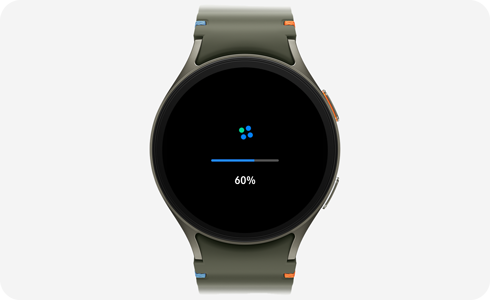
How to Update Software and Apps on Samsung Galaxy Watch
To update software and apps on your Samsung Galaxy Watch, use the Galaxy Wearable app on your phone, the Galaxy Store, or the Play Store directly on the watch. Ensure your watch has at least 30% battery and is connected to Wi-Fi or mobile data before starting.
1. Why Update Your Samsung Galaxy Watch?
Regular software updates improve performance, fix bugs, and enhance security. App updates ensure compatibility with new features and improve functionality. Keeping your Galaxy Watch updated ensures optimal performance across supported devices like the Galaxy Watch 6, Galaxy Watch 5, and Galaxy Watch 4 series.
2. How to Update Watch Software Using Your Galaxy Phone
Follow these steps to update your watch software via the Galaxy Wearable app:
- Open the Galaxy Wearable app on your phone.
- Ensure your phone and watch are connected via Bluetooth.
- Go to Settings > Software Update.
- Tap Download and Install to check for updates.
- Follow on-screen instructions to complete the update.
3. How to Update Watch Software Directly on Your Galaxy Watch
You can also update your watch software directly from the device:
- Open the Settings app on your watch.
- Scroll down and select Software Update.
- Tap Download and Install to check for updates.
- Follow on-screen instructions to complete the update.
4. How to Update Watch Apps Using Your Galaxy Phone
Update apps on your watch through the Galaxy Store on your phone:
- Open the Galaxy Store on your phone.
- Go to My > Updates to see available app updates.
- Select the apps you want to update and tap Update All.
5. How to Update Watch Apps on Your Galaxy Watch
Update apps directly on your watch:
- Open the Galaxy Store on your watch.
- Go to My > Updates to see available app updates.
- Select the apps you want to update and tap Update All.
6. How to Update Apps Using the Play Store on Your Galaxy Watch
Since your Galaxy Watch runs Wear OS, you can update apps via the Play Store:
- Open the Play Store on your watch.
- Go to My Apps & Games > Updates.
- Select the apps you want to update and tap Update All.
7. Additional Things to Check
- Ensure your watch has at least 30% battery before starting the update process.
- Connect your watch to Wi-Fi or mobile data for faster and more stable updates.
- Restart your watch if an update fails or gets stuck.
8. Supported Samsung Galaxy Devices
These steps work for most Samsung Galaxy Watch models, including the Galaxy Watch 6, Galaxy Watch 5, Galaxy Watch 4, and Galaxy Watch 3 series. Compatibility may vary depending on your phone model and software version.
9. Why Updates May Fail
- Low battery: Ensure your watch has at least 30% charge.
- Unstable connection: Use a stable Wi-Fi or mobile data connection.
- Insufficient storage: Free up space on your watch or phone.
10. Related Samsung Support Topics
Thank you for your feedback!
Please answer all questions.