How do I use an S Pen on a Galaxy device?
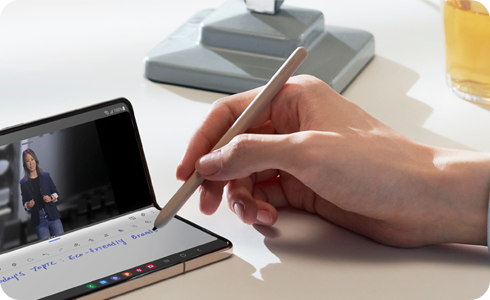
How to Use the S Pen with Samsung Galaxy Devices
The S Pen enhances productivity and creativity on Samsung Galaxy devices, including the Galaxy S25 Ultra, Galaxy Z Fold, and Tab S9. Whether you're sketching, taking notes, or translating text, follow these steps to unlock its full potential.
1. How to Remove and Activate the S Pen
To use the S Pen, gently press the tip to remove it from your device. Your device will vibrate to confirm activation. You can also activate the S Pen by hovering it over the screen and quickly double-pressing the button at its end.
2. Pairing the S Pen with Your Galaxy Device
Different S Pen models require different pairing methods:
- S Pen Fold Edition: Remove the pen from its case and start using it directly on the screen. No charging or pairing is required.
- S Pen Pro: Ensure the pen is fully charged and set the mode switch to match your device (e.g., Galaxy Z Fold). Press and hold the pairing button for 3 seconds until your phone recognizes the pen.
- S Pen for Galaxy S25 Ultra: No charging or Bluetooth pairing is needed. Simply remove the pen and start writing or drawing on the screen.
3. Using the Air Command Menu
The Air Command menu provides quick access to S Pen features and apps. Here's how to use it:
- Hover the S Pen over the screen and press the pen button to open the Air Command panel.
- If the Air Command icon doesn't appear, go to Settings > Advanced Features > S Pen and enable the Show floating icon option.
- Swipe up or down within the panel and select the desired function or app.
-Create notes in a pop-up window by double-tapping the screen while holding the S Pen button.
-View all notes in the Samsung Notes app.
-Use Smart Select to choose an area and perform actions like sharing or saving.
-Capture screenshots with Screen Write and annotate or crop them.
-Create animated messages with Live Messages.
-Record videos with AR Doodle by adding virtual handwriting or drawings.
-Translate text by hovering the S Pen over a word.
-Use Bixby Vision to search for similar images or detect text.
-Magnify areas of the screen by hovering the S Pen over them.
-Open apps in full-screen view with Glance by reducing them to a thumbnail.
-Write or draw on the Calendar app.
-Post artwork, view others' creations, and get drawing tips with PENUP.
-Add colors to PENUP-provided images with the Coloring feature.
-Add shortcuts to frequently used apps in the Air Command panel.
4. Supported Samsung Galaxy Devices
The S Pen is compatible with the following devices:
-Galaxy Z Fold series
-Galaxy S25 Ultra
-Galaxy S23 Ultra
-Galaxy Tab S9
-Previous Note series phones
5. Additional Things to Check
If the S Pen isn't working as expected:
- Ensure the S Pen is properly paired with your device.
- Check for software updates in Settings > Software Update.
- Clean the S Pen tip and screen surface to remove debris.
- Restart your device to resolve temporary glitches.
6. Related Samsung Support Topics
Thank you for your feedback!
Please answer all questions.