Use Circle to Search on Galaxy S24
How to Use Circle to Search on Samsung Galaxy Devices
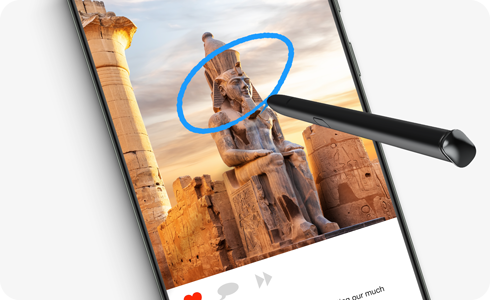
Circle to Search is a powerful feature on Samsung Galaxy devices that lets you instantly search for information about objects, text, or images on your screen. With just a simple gesture using your finger or S Pen, you can access web results, product details, or related content without leaving your current app.
What Is Circle to Search?
Circle to Search is a Google-powered tool integrated into Samsung Galaxy devices that allows users to highlight any part of their screen—whether it's an image, video, or text—and initiate an instant search. This feature works across various apps, including the Gallery, web browsers, and social media platforms, making it a convenient way to gather information quickly.
- It uses your finger or S Pen to draw a circle around the item of interest.
- It automatically triggers a Google search based on the selected area.
- It supports multiple languages and search contexts, including product identification and text translation.
Supported Samsung Galaxy Devices
Circle to Search is available on select Samsung Galaxy devices, including:
Galaxy S24, Galaxy S25, Galaxy S26, Galaxy Z Fold, Galaxy Z Flip, and newer Galaxy A series models.
How to Set Up Circle to Search
Before using Circle to Search, ensure the feature is enabled and properly configured on your device:
- Open the Settings app on your Samsung Galaxy device.
- Navigate to Apps > Choose default apps.
- Select Digital assistant app.
- Enable the option for Analyze on-screen images.
- Ensure you have a stable internet connection, as Circle to Search requires online access to function.
How to Use Circle to Search
Follow these steps to perform a search using Circle to Search:
- Open any app where you want to search for information, such as the Gallery, web browser, or social media platform.
- Locate the image, video, or text you want to search for.
- Press and hold your finger or S Pen on the screen.
- Draw a circle around the item of interest.
- Release your finger or S Pen to initiate the search.
- Review the search results displayed at the bottom of your screen.
- Search results may vary depending on the content and search algorithm.
- If the feature doesn't work, ensure "Analyze on-screen images" is enabled in settings.
Why Circle to Search May Not Work
If Circle to Search isn't functioning as expected, consider the following troubleshooting steps:
- Check your internet connection. Circle to Search requires an active connection to process searches.
- Verify that "Analyze on-screen images" is enabled in your device settings.
- Restart your device to refresh system resources and resolve temporary glitches.
- Update your device's software to the latest version for optimal performance.
Additional Things to Check
To enhance your experience with Circle to Search, keep these tips in mind:
- Use clear and distinct images for better search accuracy.
- Avoid circling too small or blurry areas, as this may affect search results.
- Experiment with different gestures, such as drawing a rectangle or highlighting text, for alternative search methods.
Related Samsung Support Topics
Thank you for your feedback!
Please answer all questions.