What to do when the Galaxy Buds microphone is not working?
Why is my Samsung Galaxy Buds microphone not working?
If your Samsung Galaxy Buds microphone isn't working, it could be due to debris blocking the mic, software glitches, or incorrect earbud placement. Follow these steps to resolve the issue quickly and restore microphone functionality.
1. Why is the microphone not working on my Galaxy Buds?
Microphone issues on Samsung Galaxy Buds often stem from physical blockages, software bugs, or improper earbud placement. Common causes include:
- Debris or earwax blocking the microphone hole
- Software glitches after firmware updates or app changes
- Earbuds inserted incorrectly into the charging case
- Low battery or charging case issues
2. How to fix the microphone on my Galaxy Buds
Clean your earbuds
If the microphone is blocked, sound won't be captured properly. Regular maintenance can prevent this issue.
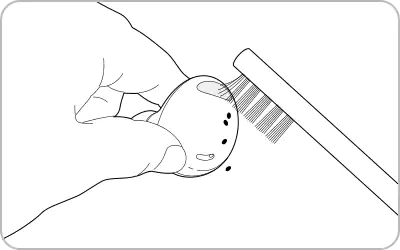
- Use a clean, dry, soft brush or cotton swab to gently remove earwax or debris from the microphone hole, speaker, and air duct.
- After each use, wipe the earbuds with a soft, dry cloth to remove surface dirt.
- Keep the earbuds dry and avoid exposing them to liquids or moisture.
- Clean the microphone hole, speaker, and air duct regularly to prevent debris buildup.
Important: Avoid using sharp objects like razors or applying excessive force, as this can damage the microphone hole, speaker, or air duct.
Restart the earbuds
A simple restart can resolve temporary software glitches affecting the microphone.
- Ensure the charging case is fully charged. If the battery is low, connect the case to a charger first.
- Insert the earbuds into their respective slots in the charging case.
- Close the charging case and wait for at least seven seconds.
- Remove the earbuds from the case to restart them.
Reset your Galaxy Buds
Resetting your earbuds can resolve persistent microphone issues caused by software conflicts.
- Open the Galaxy Wearable app on your Samsung Galaxy device.
- Navigate to Earbuds settings.
- Select Reset and follow the on-screen instructions to complete the factory reset process.
Note: If the microphone issue persists after these steps, visit a Samsung Service Center for further assistance.
Additional things to check
Supported Samsung Galaxy devices: Galaxy S24, Galaxy S25, Galaxy S26, Galaxy Z Fold, Galaxy Z Flip, Galaxy A series.
Why the issue happens: Microphone malfunctions are often caused by physical obstructions, software bugs, or improper earbud handling.
When updates may not appear: Firmware updates for Galaxy Buds may not appear if the Galaxy Wearable app is outdated or the device is not connected to Wi-Fi.
Related Samsung support topics
Thank you for your feedback!
Please answer all questions.