How do I use a Samsung TV without a remote?
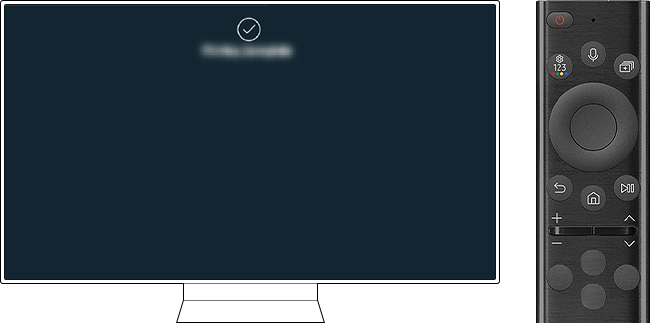
If your Samsung TV remote is missing or malfunctioning, you can still operate your TV using built-in physical buttons. These buttons allow you to power on the TV, adjust volume, switch sources, and navigate menus. Below, we'll guide you through locating and using these buttons effectively.
1. Where to Find the Built-in Buttons on Your Samsung TV
The location of the built-in buttons varies depending on your Samsung TV model. Here are the most common locations:
- Back Panel (Bottom Right Corner): On many Samsung TVs, a control stick is located on the back panel, near the bottom right corner. This stick allows you to toggle up/down and side-to-side, and pressing the center button brings up the menu.
- Front Panel (Center): Some models feature a set of buttons on the front panel, typically in the center. Long-pressing the center button powers on the TV.
- Front Bezel (Center): On certain 2018 models, a single-button controller is located in the center of the front bezel. Long-press the center button to power on the TV, single-press to move focus, and long-press again to select.
- Right Side (Bottom of Bezel): When facing the TV, some models have the controller on the right-hand side, at the bottom of the bezel. Press the button once to access the menu and again to navigate.
2. How to Power On Your Samsung TV Without a Remote
To power on your Samsung TV using the built-in buttons, follow these steps:
- Locate the built-in control button on your TV (refer to the previous section for common locations).
- Long-press the center button to power on the TV.
- If the TV doesn't turn on, ensure the power cable is securely connected and the TV is plugged in.
3. Additional Things to Check
If you're unable to locate or use the built-in buttons, consider the following:
- Check the User Manual: Refer to your TV's user manual for model-specific instructions on locating and using the built-in buttons.
- Contact Support: If you're still having trouble, contact Samsung Support for visual assistance in locating the buttons on your specific model.
4. Supported Samsung TV Models
The built-in buttons and their functions are available on most Samsung TV models, including:
- Galaxy View series
- QLED TVs (2018 and newer)
- Crystal UHD TVs
- The Frame series
- Lifestyle TVs (Serif, Sero)
5. Why the Built-in Buttons May Not Work
In some cases, the built-in buttons may not function as expected. Here are possible reasons:
- Button Malfunction: The buttons may be damaged or unresponsive due to wear and tear.
- Software Glitch: A software issue could prevent the buttons from working properly. In this case, a TV reset may help.
- Model-Specific Limitations: Some older models may not have built-in buttons or may have limited functionality.
Related Samsung Support Topics
Thank you for your feedback!
Please answer all questions.