How to set a sleep timer on a Samsung TV
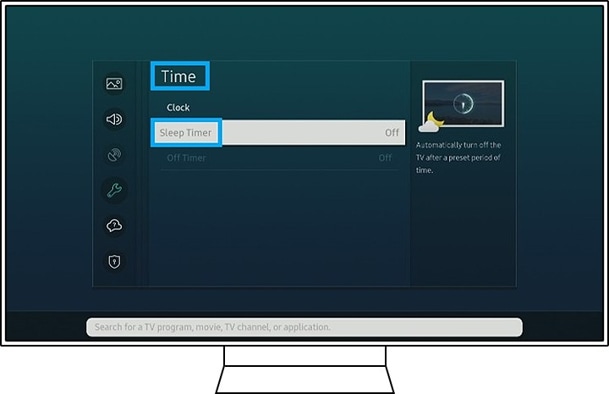
How to Set a Timer to Power Off My Samsung TV Automatically?
To automatically power off your Samsung TV after a set period, use the built-in sleep timer feature. This function allows you to schedule your TV to turn off after 30 to 180 minutes, helping conserve energy and reduce unnecessary usage.
1. How to Set the Sleep Timer on Your Samsung TV
Follow these steps to set a timer to power off your Samsung TV:
- Press the Home button on your Samsung TV remote.
- Navigate to Settings (gear icon).
- Select General or System (depending on your model).
- Choose Sleep Timer or Power Off Timer.
- Select a duration between 30 minutes and 180 minutes.
- Confirm your selection. The TV will automatically power off after the set time.
2. Why Does the Sleep Timer Feature Not Work on My Samsung TV?
- The feature may not be supported in certain viewing modes, such as gaming or external input modes.
- Some older Samsung TV models or specific regional variants may not support this function.
- If the TV is in standby mode or powered off manually, the sleep timer will not activate.
3. Supported Samsung TV Models
The sleep timer feature is available on most modern Samsung TVs, including:
- Galaxy S24 series (with Samsung TV Plus)
- Galaxy Z Fold and Galaxy Z Flip series (via SmartThings integration)
- Select QLED, Neo QLED, and MicroLED TVs from 2020 onwards
For exact compatibility, refer to your TV's user manual or specifications.
4. Additional Things to Check
- Ensure your TV is running the latest software version. Outdated firmware may limit functionality.
- Verify that the sleep timer is not disabled in the settings menu.
- Check if the feature is restricted in your region. Some countries may not support this option due to regulatory requirements.
5. Related Samsung Support Topics
Thank you for your feedback!
Please answer all questions.