How to Use SmartThings on a Samsung Smart TV
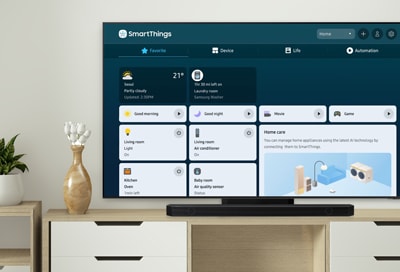
How to Use the SmartThings App on Your Samsung Smart TV?
The SmartThings app on your Samsung Smart TV allows you to control connected smart devices, manage automations, and receive notifications—all from your TV screen. Whether you're using a Galaxy S24, Galaxy Z Fold, or any compatible Samsung device, this guide covers everything you need to get started.
1. How to Access the SmartThings App on Your Samsung Smart TV
To use the SmartThings app on your Samsung Smart TV, follow these steps:
- Turn on your Samsung Smart TV and press the Home button on your remote.
- Navigate to the Home screen and select Connected Devices.
- Choose SmartThings from the list of available apps.
- Sign in with your Samsung account to access your registered devices.
- Tip: If you don't see the SmartThings app, ensure your TV is running the latest software version.
2. What Devices Can You Control Using the SmartThings App?
The SmartThings app supports a wide range of devices, including:
- SmartThings devices: View and control devices registered to the SmartThings cloud.
- IR-controlled devices: Air conditioners, air purifiers, robot vacuums, fans, and humidifiers.
- Bluetooth devices: Speakers, headsets, soundbars, keyboards, mice, and gamepads.
- Devices near your TV: Automatically detects nearby devices for quick control.
- Map view (2023 models): Displays devices on a visual floor plan for easier management.
3. How to Use the Map View Feature on 2023 Samsung Smart TVs
The Map view feature on 2023 Samsung Smart TVs and smart monitors provides an intuitive way to manage your devices using a visual floor plan. Here's how to use it:
- Open the SmartThings app on your Samsung Smart TV.
- Select Map View from the menu.
- Log in with the same Samsung account used on your mobile SmartThings app to sync devices.
- Edit the floor plan using the Edit Map View option in the mobile app.
- Note: Map view is only available on 2023 Samsung Smart TVs and smart monitors.
4. How to Set Up Notifications for SmartThings Devices
You can receive notifications for registered devices directly on your Samsung Smart TV. Follow these steps:
- Open the SmartThings app on your TV.
- Go to Settings and select Notifications.
- Choose the devices you want to receive notifications from.
- Enable Motion notifications if needed (notifications will trigger on any movement).
- Important: Notification support varies by device model and type.
5. How to Use a Doorbell with Your Samsung Smart TV
With a compatible SmartThings doorbell, you can check the camera feed and engage in two-way conversations directly from your TV. Here's how:
- Ensure your Samsung Smart TV or smart monitor is from 2022 or later (or updated for 2021 models).
- Connect a compatible SmartThings doorbell (e.g., Ring Doorbell 3 or Pro).
- Open the SmartThings app on your TV and go to Settings > Doorbell.
- Enable notifications and two-way talk functionality.
- Note: Two-way talk is only supported on Ring Doorbell 3 and Pro models.
- Note: Ring doorbell integration is no longer supported on Samsung TVs from 2018–2021.
6. Supported Samsung Galaxy Devices
The SmartThings app is compatible with the following Samsung Galaxy devices:
- Galaxy S24, Galaxy S25, Galaxy S26
- Galaxy Z Fold series
- Galaxy Z Flip series
- Galaxy A series
7. Additional Things to Check
If you encounter issues with the SmartThings app, consider the following:
- Ensure your TV is connected to a stable Wi-Fi network.
- Update your TV's software to the latest version.
- Verify that your devices are properly registered in the SmartThings app.
- Check for compatibility issues with older Samsung TV models.
Related Samsung Support Topics
Thank you for your feedback!
Please answer all questions.