Send and receive files with Quick Share on your Galaxy phone

Sharing files between devices has never been easier, thanks to Samsung's Quick Share feature on your Galaxy phone. Whether you're sending photos, videos, or documents, Quick Share allows you to transfer files seamlessly and securely. In this guide, we'll walk you through the steps to send and receive files using Quick Share, ensuring you can make the most of this convenient feature. Let's get started and enhance your file-sharing experience on your Galaxy phone!

Send and receive files with Quick Share on your Galaxy phone

Caution
Please use caution when sharing sensitive information. If you are concerned about sharing via Nearby Share or Quick Share, then we recommend using Private Share instead.
Note
  • The Quick Share feature does not support sharing videos with TVs or with SmartThings supported devices, however you can share photos. To share videos to your TV, you can use the Smart View feature.
  • Availability of sharing features and functions will vary by device, carrier, and software version. To share files with your PC, you can use Link to Windows or the old-fashioned way using a USB cable.
  • Auto Blocker with Maximum restrictions enabled will automatically remove location data from images shared from the Gallery.

Send files with Quick Share

Trying to share those awesome vacation photos with your friends? Use Quick Share to quickly and easily distribute your photography. Keep in mind that you cannot use Quick Share if you’re using a mobile hotspot, Wi-Fi Direct, or Smart View.

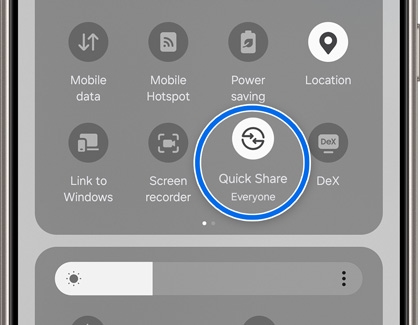
  1. First, make sure the Quick Share feature is turned on for both phones. To do this, open the Quick settings panel by swiping down from the top of the screen using two fingers, and then tap the Quick Share icon.
    Quick Share icon highlighted in the Quick Settings panel
  2. Tap the Send tab, and then tap Select file.
  3. Select a category like Images, Videos, Docs, or Others from the top of the screen to select the file you’d like to share, and then tap Done. Tap Edit to select a different file.
  4. Your phone will begin looking for another device. If you are using a Note20 Ultra or S21 Ultra, point it at the receiving device.
  5. When the other device appears, tap its name to send the file. The other phone may require permission before it can receive the file. On your phone, "Sent" will appear under the other device's name when the transfer is complete.
    Quick Share displaying Sent under Share to devices nearby

Tips:

  • If your phone doesn’t search for the target device or another device never appears when using Quick Share, you can try checking for software updates.
  • Depending on your device's software version, a pop-up notification may appear when sharing images containing personal information to alert you and ensure you are aware of the sensitive content being shared.
  • If someone is sending something to you using Quick Share, you will receive a notification on your phone. Select the notification to view the file. Remember, you must have Quick Share turned on to receive files through this feature.
Read less

Adjust who can share files with your device

Note
We recommend using the ‘Your devices’ or ‘Contacts’ options. If sharing with someone not saved in your contacts, use the ‘Everyone (10 minutes only)’ option.

In Quick Share’s Receive mode, anyone nearby can temporarily share files with you, streamlining the file-sharing process for faster and more efficient transfers.

  1. Open the Quick settings panel by swiping down from the top of the screen using two fingers, and then tap the Settings icon (the gear).
  2. Tap Connected devices, and then tap Quick Share.
    A Galaxy S26 screen showing the Connected devices settings with the Quick Share option highlighted in a blue box.
  3. Tap Who can share with you.
    A Galaxy S26 screen showing the Who can share with you menu with the Contacts option selected.
    Then, choose from the following options:
    • No one
    • Your devices
    • Contacts 
    • Everyone (Only for 10 minutes)
Read less

Share with Apple devices

Step 1: Enable Share with Apple devices on Your Galaxy Phone

  1. Open Settings on your Galaxy device.
  2. Navigate to Connected devices, and then tap Quick Share.
    Connected devices menu screen with Quick Share highlighted.
  3. Turn on the Share with Apple devices option.
    Quick Share menu screen with the Share with Apple devices toggle turned on under Nearby sharing settings.

Step 2: Set Sharing Permissions

On Your Galaxy Device:

  1. Open Settings, navigate to Connected devices, and then tap Quick Share.
    Connected devices menu screen with Quick Share highlighted.
  2. Tap Who can share with you.
    Quick Share menu screen with Who can share with you highlighted.
  3. Select Everyone (10 minutes only).

    Nearby sharing settings with Everyone (10 minutes only) selected in the pop up menu.


On Your Apple Device:

  1. Open Settings on your iPhone or iPad.
  2. Navigate to General, then tap AirDrop.
  3. Set the option to Everyone (10 minutes only).

Step 3: Share Files from Your Galaxy Device

  1. Open the file you want to share (e.g., Images, Videos, Docs).
  2. Tap the Share icon (three connected dots), and then tap Quick Share.
    Galaxy device screen showing a share menu with a photo selected for sharing with the Quick Share icon highlighted.
  3. Select the Apple device under Share to devices nearby. Ensure the recipient's Apple device is set to Everyone in AirDrop for visibility.
    Quick Share app screen showing a sharing menu with available target devices including an apple device.

Step 4: Receive Files on Your Galaxy Device

  1. Open the Quick Panel on your Galaxy phone.
  2. Ensure Quick Share is active.
    Quick settings menu with the activated Quick Share icon highlighted.
  3. Your phone should be visible to Apple devices while Share with Apple devices is enabled.
Important
  • Your Galaxy device may temporarily disconnect from Wi-Fi networks while searching for or sharing with Apple devices.
  • Ensure both devices are within close proximity for successful file transfer.

Troubleshooting tips

  • If you can't find the recipient's device, double-check that both devices have Bluetooth and Wi-Fi enabled.
  • Restart both devices if the connection fails.
Read less
Was this content helpful?
Table of contents
We're here for you

Contact Samsung Support

Contact us online through chat and get support from an expert on your computer, mobile device, or tablet. Support is also available on your mobile device through the Samsung Members App.

