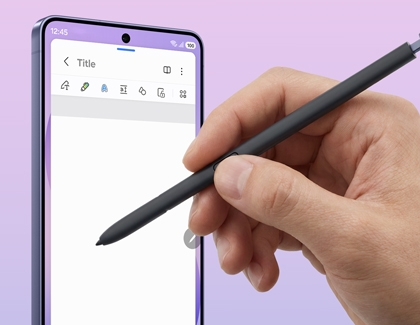
Use the S Pen with Galaxy S26 Ultra
- The Galaxy S26 Ultra S Pen is not compatible with Galaxy S26 or S26+.
- Replacement S Pens are available on Samsung.com.
Pair and charge

The S Pen in your Galaxy S26 Ultra doesn't rely on Bluetooth, so there's no need for pairing or charging. Just keep it stored inside your phone when not in use and take it out whenever you're ready to start!
Air command

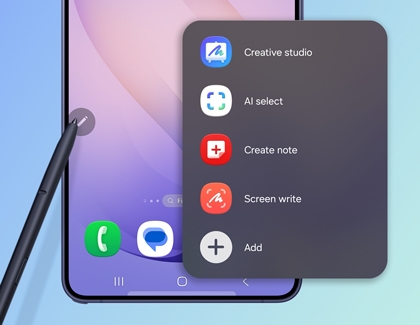
The Air Command menu on the Galaxy S26 Ultra provides quick access to apps and features optimized for the S Pen. To open it, remove the S Pen from your phone, and then tap the Air Command (pen) icon on the right side of the screen. Alternatively, you can also hover the S Pen over the screen and press the S Pen button.
From there, you can choose from the following options:
- Creative Studio: Turn sketches into artwork, create images from text descriptions, or transform Gallery photos into cartoons.
- Create Note: Start a new note in the Samsung Notes app.
- View all Notes: Access notes you’ve previously created.
- AI Select: Select an item on the screen, draw on it, generate images, or create GIFs.
- Screen Write: Write or draw directly on the screen.
- Translate: Translate text on the screen and select your preferred language at the top.
- Magnify: Hover the S Pen over the screen to zoom in on its contents.
- PENUP: Create artwork and live drawings using the PENUP app.
- Write on Calendar: Write directly in the Calendar app.
Explore these features to make the most of your S Pen.
Air view

Air View allows you to preview content by pointing your S Pen at it on the screen. You can turn this feature on or off based on your preference.
To enable Air view:
- Open Settings > Advanced features > S Pen.
- Tap Air view and turn on the switch at the top of the screen.
- Choose between Previews and pointer, Pointer only, or Previews only to customize the experience.
Enhance your S Pen interaction with Air View!
S Pen to text

Use the S Pen to write directly in search fields, address bars, or any text input area. Your handwriting will automatically convert to text.
To enable S Pen to text:
- Open Settings > Advanced features > S Pen.
- Tap S Pen to text and turn on the switch at the top.
- Tap How to edit to learn how to modify your handwriting.
- Turn on Show writing toolbar for added convenience.
Make writing easier with S Pen to Text!
Screen off memos

Create memos or drawings even when your phone's screen is off by using the S Pen. Simply remove the S Pen to activate the feature.
To enable Screen off memos:
- Open Settings > Advanced Features > S Pen.
- Turn on the switch next to Screen Off Memo.
- Remove the S Pen while the screen is off and start writing or drawing.
Use these options during a memo:
- Color: Change the pen color by tapping the color circle.
- Pen Settings: Adjust line thickness by tapping the pen icon.
- Erase: Use the eraser icon to remove content.
- Pin to Always On Display: Keep your memo visible on the Always On Display.
- Save: Save your memo to the Samsung Notes app.
- Next Memo: Add a new page by tapping the down arrow.
Capture ideas anytime with Screen Off Memos!
Quick notes
Create notes instantly by pressing and holding the S Pen's button and tapping the screen twice with the pen tip.
To enable Quick notes:
- Open Settings > Advanced features > S Pen.
- Turn on the switch next to Quick notes.
- Press and hold the S Pen button, then tap the screen twice to start a new note in the Samsung Notes app.
Capture thoughts instantly with Quick Notes!
S Pen Settings
Customize additional S Pen features, including sounds and vibrations.
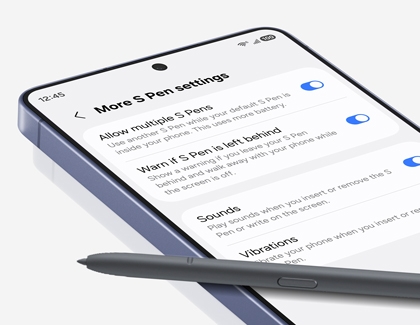
To access these settings, open Settings > Advanced Features > S Pen. Tap More S Pen Settings and choose from the following options:
- Allow multiple S Pens: Use an additional S Pen while the default one is stored in your phone.
Note: This may increase battery usage. - Warn if S Pen is left behind: Receive a notification if the S Pen is left outside the phone for a while after the screen turns off.
- Sounds: Enable sounds for inserting, removing, or writing with the S Pen.
- Vibrations: Set your phone to vibrate when the S Pen is inserted or removed.
Personalize your S Pen experience with these settings!
Contact Samsung Support