Use Ad blockers in Samsung Browser on your Galaxy phone or tablet
Enhance your browsing experience by blocking intrusive ads in the Samsung Browser on your Galaxy phone or tablet. Ad blockers help reduce distractions, improve page loading speeds, and save data. This guide will walk you through enabling and managing ad blockers in the Samsung Browser

Use Ad blockers in Samsung Browser on your Galaxy phone or tablet
Ad blockers are apps in Samsung Browser that will prevent ads from appearing when you're browsing. Keep in mind that some Ad blockers are free, while others will cost a few dollars. Here's how to install and manage them:
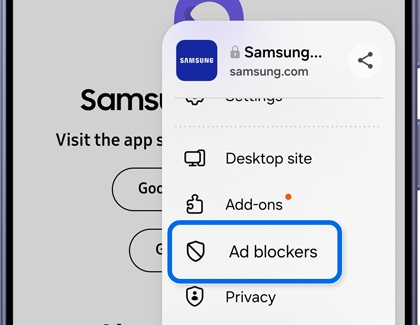
- Open the Samsung Browser app, tap the Tools icon (the three vertical dots), and then tap Ad blockers.
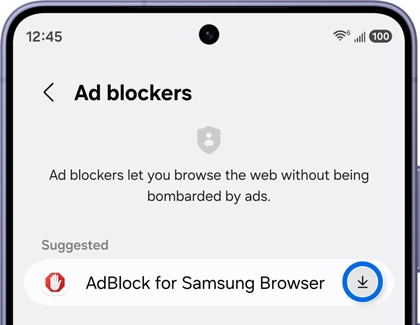
- You'll see a list of Ad blockers. Tap the Install icon next to your desired Ad blocker to begin downloading it. You can also tap the name of the Ad blocker to view more information.
- Once the Ad blocker is installed, it will be automatically turned on and added to the Installed list. To enable or disable the Ad blocker, tap the switch next to it.
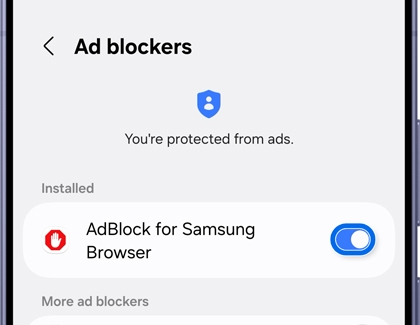
- You can install additional Ad blockers if you wish.
For more information about protecting your Galaxy device, please see our malware guide.
Recommended Articles
We're here for you
Contact Samsung Support
Contact us online through chat and get support from an expert on your computer, mobile device, or tablet. Support is also available on your mobile device through the Samsung Members App.

