Clear the history, cache, and cookies in Samsung Browser on your Galaxy phone or tablet
Maintaining your browsing privacy and optimizing your device's performance is essential. Clearing history, cache, and cookies in the Samsung Browser on your Galaxy phone or tablet can help improve loading speeds, free up storage, and protect your personal data. This guide will walk you through the steps to clear these elements effectively, ensuring a smoother and more secure browsing experience.

Clear the history, cache, and cookies in Samsung Browser on your Galaxy phone or tablet
Note
After clearing your data, you may need to log into certain websites again. Please make a note of your login information before clearing any data.
- Navigate to and open the Samsung Browser app, and then tap More options (the three vertical dots).
- Tap Settings, then tap Personal browsing data, and then tap Delete browsing data.
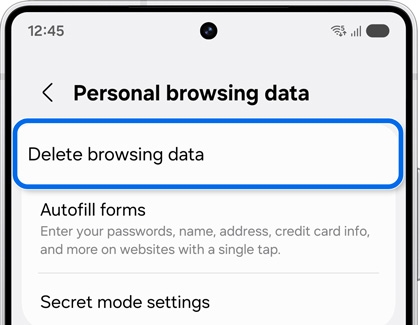
- Select the data you would like to clear, such as Browsing history, Cookies and site data, Cached images and files, Passwords, or Autofill data.
- Tap Delete data, and then tap Delete to confirm.
Recommended Articles
We're here for you
Contact Samsung Support
Contact us online through chat and get support from an expert on your computer, mobile device, or tablet. Support is also available on your mobile device through the Samsung Members App.

