Use the navigation bar in Samsung Browser on your Galaxy phone or tablet
The navigation bar in the Samsung Browser app is a key feature that enhances your browsing experience by providing quick access to essential functions. Whether you're managing tabs, switching between private and normal browsing, or accessing settings, the navigation bar simplifies these tasks. This guide will walk you through the features and functionalities of the navigation bar, helping you navigate the web more efficiently on your Galaxy device.

Use the navigation bar in Samsung Browser on your Galaxy phone or tablet
Navigate Samsung Browser
The navigation bar in Samsung Browser is similar to what you'd see on a desktop browser. You can search for new websites, share them, and save them to your bookmark list.
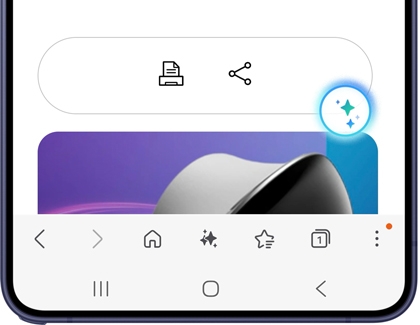
Navigate to and open the Samsung Browser app. If desired, you can help improve the app by reporting errors. Then, tap Agree. You can set Samsung Browser as your default browser by tapping Continue. Otherwise, tap Not now. The following functions are available on the toolbar in Samsung Browser:
- Bookmark icon: Used to bookmark the current page. This is located in the top left corner.
- Address bar: Used to search for a new web address.
- Reload icon: Reloads the current page. This is located in the top right corner.
- Back arrow: Used to navigate back to the previous page.
- Forward arrow: Used to navigate forward one page.
- Home icon: Used to return to your Homepage.
- Browsing assist icon: Used to access Galaxy AI features, such as Summarize, Translate, and Read highlights aloud.
- Bookmarks list icon: Used to see your bookmarks. This is located at the bottom of the screen.
- Tabs icon: Used to open your current tabs.
- Menu icon: Used to open additional options and settings.
You can also add the Samsung Browser Search widget to your device's Home screen. The widget allows you to check your recent browsing history as well. For more information about adding widgets, check out our Home screen guide.
Recommended Articles
We're here for you
Contact Samsung Support
Contact us online through chat and get support from an expert on your computer, mobile device, or tablet. Support is also available on your mobile device through the Samsung Members App.

