Use bookmarks in Samsung Browser on your Galaxy phone or tablet
Bookmarks in the Samsung Browser app allow you to save and organize your favorite websites for quick access. Whether you're managing personal or work-related links, this feature helps streamline your browsing experience. This guide will walk you through adding, organizing, and accessing bookmarks on your Galaxy phone or tablet.

Use bookmarks in Samsung Browser on your Galaxy phone or tablet
Saving a web page to your bookmarks will let you find and open it later. You can also organize your bookmarks if you have a lot of them.
- Navigate to and open the Samsung Browser app, and then open a web page that you’d like to save to your bookmarks.
- Tap the bookmark icon (the star in the top left), and then tap the bookmark list icon (the star in the bottom toolbar). You will see all of your bookmarks.
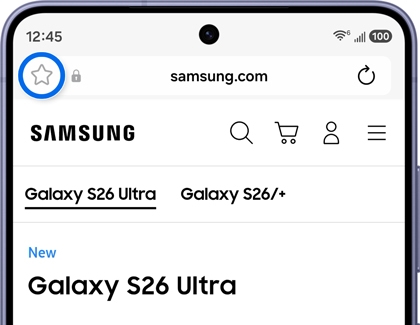
- To rename a bookmark, tap More options (the three vertical dots), and then tap Edit.
- Select your desired bookmark, tap Edit at the bottom, and then enter a new name for the bookmark. You can also edit the web address. Tap Save to confirm.
- To create a folder for your bookmarks, tap More options (the three vertical dots), and then tap Create folder.
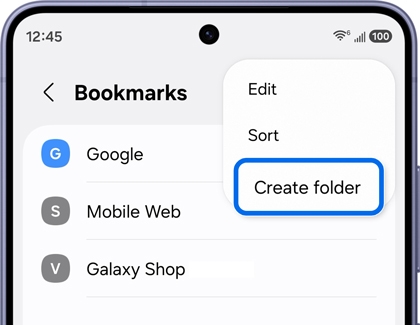
- Enter a name for the folder, and then tap Create.
- Next, tap More options (the three vertical dots) again, and then tap Edit.
- Select the bookmark(s) you'd like to add to the new folder. You can also select All at the top. Tap Move, and then tap the new folder. Tap Select to move the bookmarks into the folder.
Recommended Articles
We're here for you
Contact Samsung Support
Contact us online through chat and get support from an expert on your computer, mobile device, or tablet. Support is also available on your mobile device through the Samsung Members App.

