Open or close tabs in Samsung Browser on your Galaxy phone or tablet

Open or close tabs in Samsung Browser on your Galaxy phone or tablet
Open a new tab in Samsung Browser
Tabs allow you to have multiple web pages open at once. This makes it easy to keep track of your favorite or most visited websites.
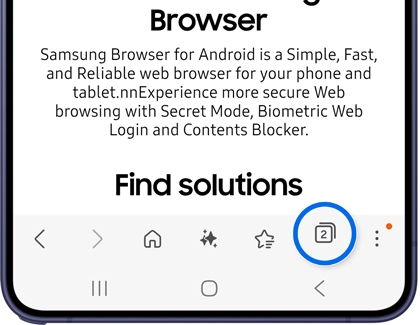
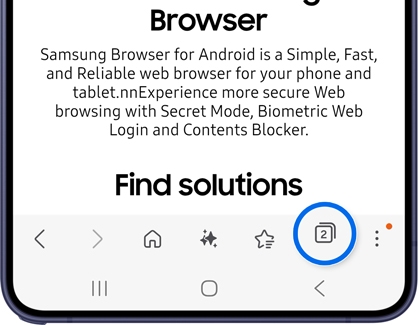
- Navigate to and open the Samsung Browser app, and then tap the Tabs icon in the bottom toolbar (it looks like a box with a number).
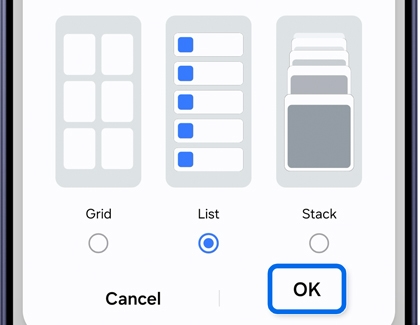
- You may be prompted to choose from List, Stack, or Grid. Make your selection, and then tap OK.
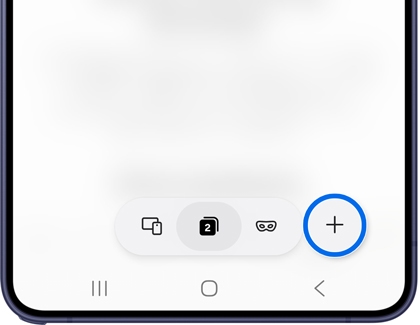
- Then, tap New tab to select a new page you’d like to open; the page will open automatically.
View all tabs in Samsung Browser
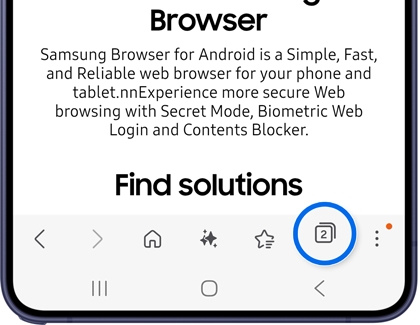
- Open the Samsung Browser app, and then tap the tabs icon in the bottom toolbar (it looks like a box with a number).
- A new screen will appear, displaying thumbnails of all your open tabs. You can scroll through them to see which websites are currently running.
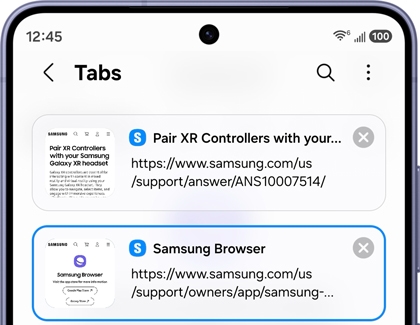
This feature allows you to easily monitor and switch between your active tabs for a more organized browsing session.
Switch between tabs in Samsung Browser
- Open the Samsung Browser app, and then tap the tabs icon in the bottom toolbar (it looks like a box with a number).
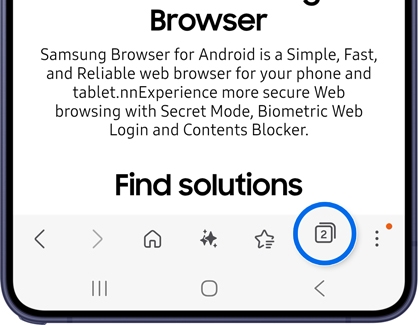
- A new screen will appear, showing thumbnails of all your active tabs. Scroll through them to check which websites are currently open.
- Tap on the desired tab to switch to it and continue browsing.
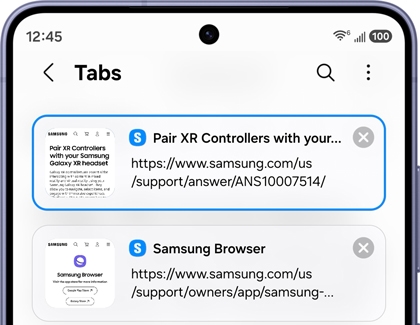
With these simple steps, you can seamlessly switch between tabs and keep your browsing experience smooth and streamlined.
Close tabs in in Samsung Browser
Managing tabs in the Samsung Browser app is simple, whether you want to close a single tab or all of them at once. Here's how to do it
- Open in the Samsung Browser app, and then tap the tabs icon in the bottom toolbar (it looks like a box with a number).
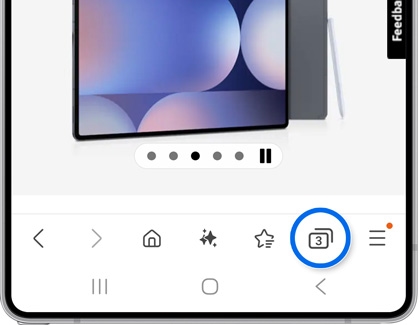
- Tap the close icon (the x) in the top right corner of the tab you want to close.
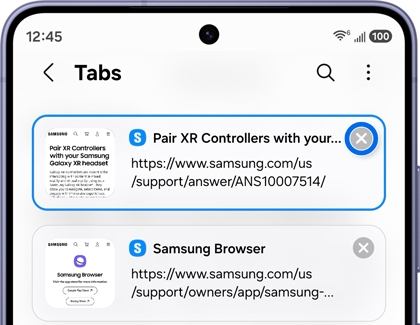
- If you need to close all of your tabs, tap More options (the three vertical dots), then tap Close all tabs, and then tap Close to confirm.
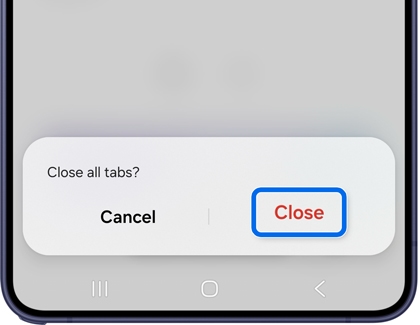
Alternatively, to automatically close unused tabs, tap the tabs icon, then tap More options, and then tap Auto settings. Choose one of the following:
- Never
- After 7 days
- After 30 days
- Within smart tab management
This feature helps you manage your tabs efficiently and free up memory on your device.
Reopen a closed tab in Samsung Browser
- Open the Samsung Browser app, and then tap the tabs icon in the bottom toolbar (it looks like a box with a number).
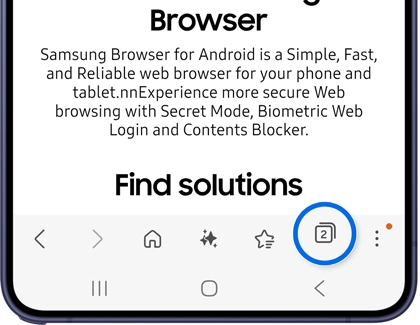
- Tap More options (the three vertical dots) in the top right corner, then tap Reopen closed tab, and then select the tab.
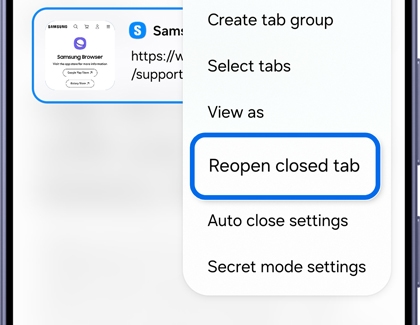
This feature ensures you never lose track of important pages you were browsing.
Change the tab layout in Samsung Browser
Customize your browsing experience by adjusting the tab layout in the Samsung Browser app.
- Open the Samsung Browser app, and then tap the tabs icon in the bottom toolbar (it looks like a box with a number).
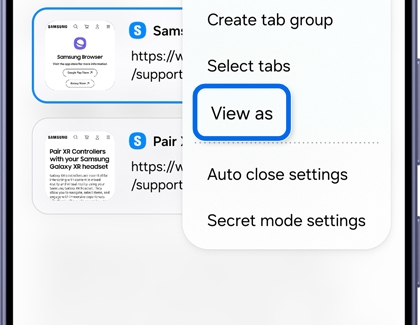
- Tap More options (the three vertical dots, and then tap View as.
- Choose either Grid, List, or Stack, and then tap OK to confirm.
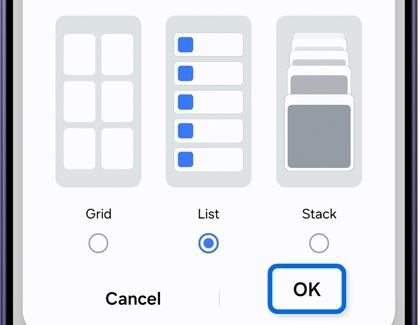
This feature allows you to view your tabs in a way that best suits your preferences and browsing style.
Create a tab group in Samsung Browser
- Open the Samsung Browser app, and then tap the tabs icon in the bottom toolbar (it looks like a box with a number).
- Tap More options (the three vertical dots, and then tap Create tab group.
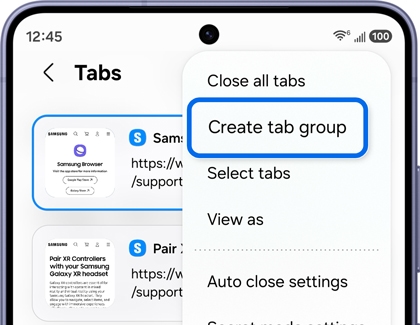
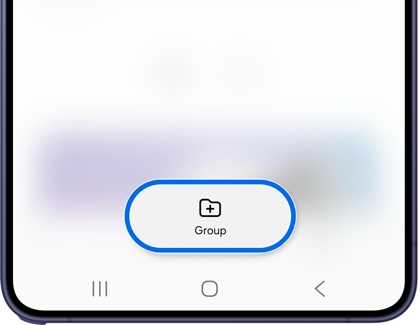
- Select each tab you want to group together, and then tap Group in the bottom toolbar.
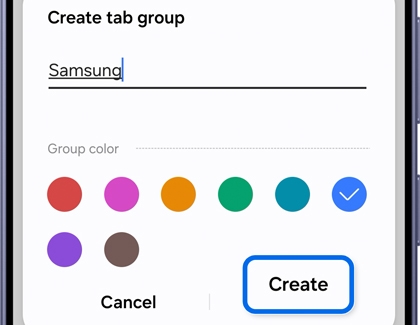
- Enter a name for the grouped tabs, select a group color, and tap Create to confirm.
This feature helps you keep related tabs organized and easily accessible.
Open a private tab in Samsung Browser
- Open the Samsung Browser app, and then tap the tabs icon in the bottom toolbar (it looks like a box with a number).
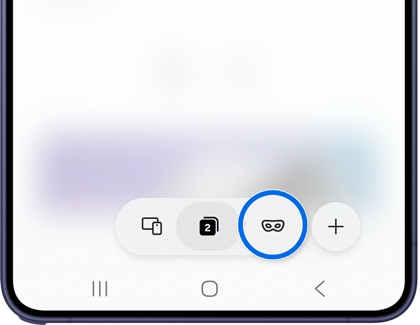
- Tap the Secret mode icon (it looks like a mask). To open additional tabs in Secret mode, tap the New tab icon.
- To exit Secret mode, tap the tab icon in the bottom toolbar, then tap it again. Now, select your desired tab.

