Add autofill information in Samsung Browser on your Galaxy phone or tablet
Simplify your browsing experience by adding autofill information in the Samsung Browser on your Galaxy phone or tablet. Autofill automatically fills in forms, login details, and other fields, saving you time and effort. This guide will walk you through the steps to set up and manage your autofill information, ensuring a smoother and more efficient browsing experience.

Add autofill information in Samsung Browser on your Galaxy phone or tablet
If you don't want to type in your personal information every time you visit a website, you can use autofill forms to automatically save your info.
- Navigate to and open the Samsung Browser app, and then tap the Tools icon (the three vertical dots).
- Tap Settings, then tap Personal browsing data, and then tap Autofill forms.
- Tap Profiles, and then tap Add (the plus sign).
- From here, you can input personal information such as your name, address, phone number, and email. Tap Save when you're finished.
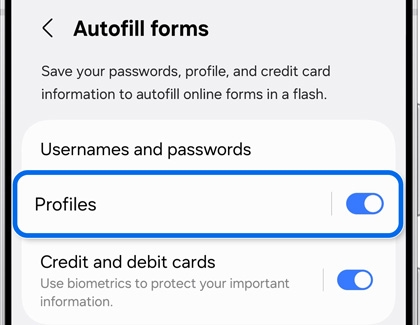
- Next, tap Credit and debit cards, and then tap Add (the plus sign) to add your card details.
Note: You will need to use fingerprint recognition to add card information.
Once set up, the autofill option will appear when you're prompted to enter information on a webpage. Select it to automatically fill in your saved details.
Recommended Articles
We're here for you
Contact Samsung Support
Contact us online through chat and get support from an expert on your computer, mobile device, or tablet. Support is also available on your mobile device through the Samsung Members App.

