Use the browsing privacy dashboard in Samsung Browser on your Galaxy phone or tablet
Protect your online privacy and security by using the browsing privacy dashboard in the Samsung Browser on your Galaxy phone or tablet. This feature provides quick access to privacy information for all your visited websites, helping you track blocked content and customize safety settings. This guide will walk you through accessing and managing the browsing privacy dashboard.

Use the browsing privacy dashboard in Samsung Browser on your Galaxy phone or tablet
- Navigate to and open the Samsung Browser app, and then tap the Tools icon (the three vertical dots).
- Tap Privacy to view the browsing privacy dashboard.
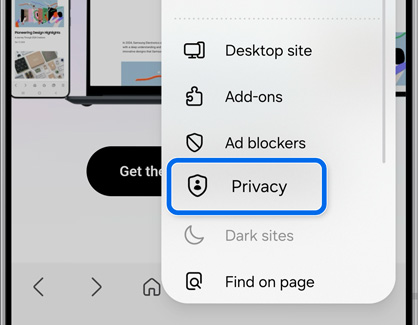
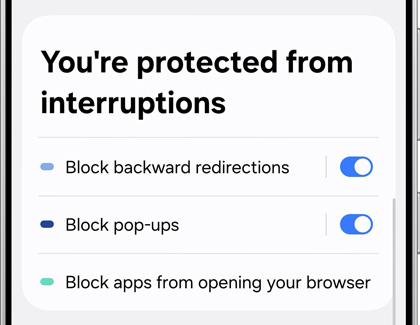
- From this screen, you will see the amount of blocked content, such as trackers and ads, and can customize your desired options.
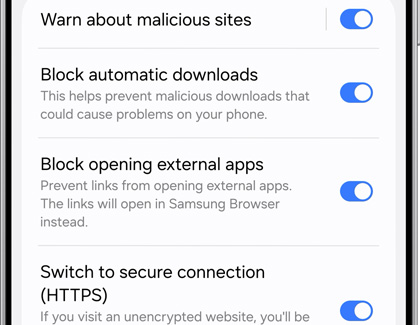
- Swipe up for additional safety options, such as Warn about malicious sites and Block automatic downloads.
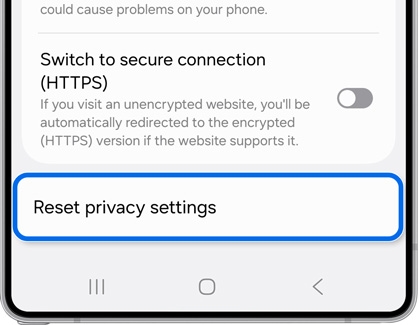
- If you would like to start over with your privacy settings, tap Reset privacy settings at the bottom of the screen. Tap Reset to confirm.
Recommended Articles
We're here for you
Contact Samsung Support
Contact us online through chat and get support from an expert on your computer, mobile device, or tablet. Support is also available on your mobile device through the Samsung Members App.

