Install extensions for Samsung Browser on your Galaxy phone or tablet
Enhance your browsing experience on your Galaxy phone or tablet by adding extensions to the Samsung Browser. Extensions can provide additional functionality, such as ad blocking, password management, and more. This guide will walk you through installing extensions from the Galaxy Store.

Install extensions for Samsung Browser on your Galaxy phone or tablet
- Navigate to and open the Samsung Browser app.
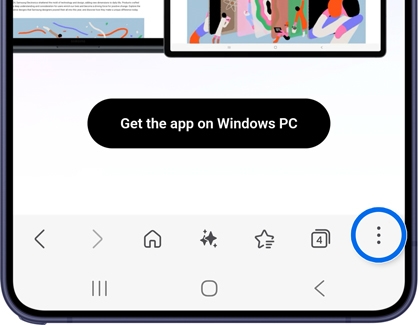
- Tap the Tools icon (the three vertical dots) in the bottom-right corner.
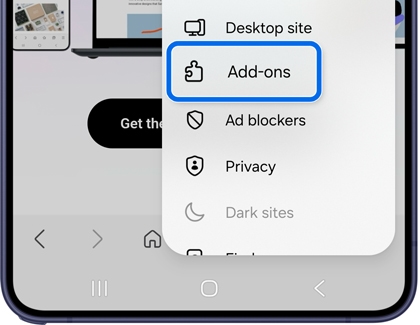
- Tap Add-ons, then tap Get more add-ons.
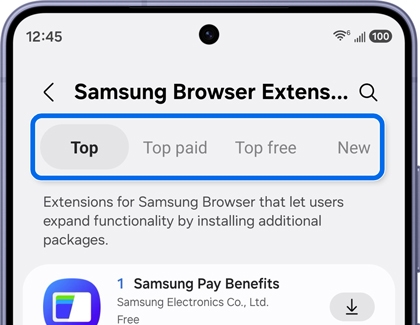
- The Galaxy Store will open. Select a tab such as Top, Top Paid, Top Free, or New.
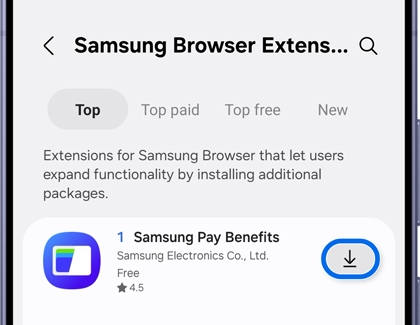
- Tap the Install icon next to the extension you want to add.
- Once installed, the extension will be available in your Samsung Browser for immediate use.
By adding extensions to the Samsung Browser, you can customize your browsing experience and access additional tools and features on your Galaxy device.
Recommended Articles
We're here for you
Contact Samsung Support
Contact us online through chat and get support from an expert on your computer, mobile device, or tablet. Support is also available on your mobile device through the Samsung Members App.

