Samsung Galaxy device is slow, freezes, or displays ads after installing third party apps

If your Galaxy device appears to become slow, freeze, or show unwanted ads after installing third-party apps, check for suspicious or unauthorized apps. Certain apps may display fake alerts like "Your phone is slow" or "Battery is draining fast" to trick you into downloading more apps. If your device becomes slow or shows unwanted ads after installing third-party apps, check for suspicious apps and avoid installing unknown sources in the future.
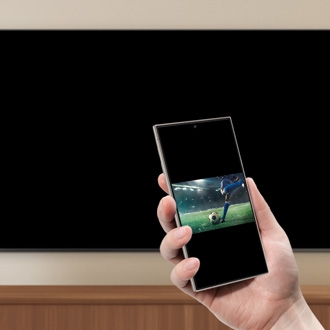
A person holding a Galaxy S26 Ultra with a loading icon visible on top of the phone.

Samsung Galaxy device is slow, freezes, or displays ads after installing third party apps

Note
Menu names, settings, and screen layouts may vary depending on the model and software version.

Check suspicious apps using Device care

Without installing additional apps, you can use Device care to free up storage, close background apps, check unusual battery usage, and scan for malware. This feature keeps your Galaxy device safe and optimized.

If you suspect a malicious app, use Device care to scan your phone for threats. It automatically detects harmful behaviour and allows you to remove risky apps immediately.

Handle malicious apps through Device care notification

Device care automatically scans for malicious apps and limits them by switching them to deep sleep mode. Refer to the instructions below.

When the notification appears during this period, you can delete the detected apps immediately.

  1. Tap Device care notification.
    Lock screen with the Device care notification.
  2. View Apps to review and tap Uninstall.
    A list of apps showing with the Uninstall button highlighted.
  3. Tap OK.
    A confirmation pop-up with the OK button highlighted.
    Note: The notification may vary depending on the Android version on your Galaxy device.

Check malicious apps in deep sleep mode

If a Device care notification was dismissed, you can manually check apps that have been placed into Deep sleeping apps.

  1. Tap Settings, then select Device care.
  2. Tap Battery.
    Device care menu with the Battery option highlighted.
  3. Tap Background usage limits.
  4. View Deep sleeping apps.
    Background usage limits screen with the Deep sleeping apps option highlighted.

Run app security diagnosis

You can diagnose apps through Device care and remove apps identified as security risks.

  1. Tap Settings, then select Device care.
  2. Tap Diagnostics
  3. Tap App safety Diagnostics.
    Diagnostics menu with App safety Diagnostics highlighted.
  4. View Apps to review and tap Uninstall.
    App safety Diagnostics screen with Uninstall button highlighted.
  5. Tap Uninstall again.
Notes
  • Malicious apps can be viewed only after Device care has put them into deep sleep mode.
  • For accurate diagnosis, connect to Wi-Fi and restart your device before running the scan.
Read less

Remove suspicious apps manually

If your Galaxy device still displays ads or operates abnormally without any Device care alert, remove unused or suspicious apps manually.

  1. Tap Settings, then select Apps.
  2. Select the app.
  3. Tap the Uninstall button.
    App info screen with Uninstall button highlighted.
Read less

Prevent and block security threats automatically

The Auto Blocker feature can help protect your Galaxy device from security risks, suspicious activities, and privacy threats. When turned on, it blocks apps downloaded from unverified sources outside the Play Store or Galaxy Store.

  1. Tap Settings, then select Security and privacy.
  2. Turn on Auto Blocker.
    Security and privacy menu with Auto Blocker enabled.
Note
Refer to this article to learn more about the Auto blocker feature.
Read less
Was this content helpful?
We're here for you

Contact Samsung Support

Contact us online through chat and get support from an expert on your computer, mobile device, or tablet. Support is also available on your mobile device through the Samsung Members App.