USB flash drive not recognized on Galaxy phone or tablet
You may be unable to use a USB flash drive with your Galaxy phone or tablet if the drive is faulty or needs to be formatted. Our troubleshooting steps will help you access and use your USB flash drive.
USB flash drive not recognized on Galaxy phone or tablet
1
Unplug and inspect the USB flash drive.
A faulty drive can disrupt the communication between your devices, causing the USB drive to not be recognized. Inspect the drive for cracks or broken parts. If it’s damaged, replace the flash drive.
It's crucial to keep your USB drive updated to ensure compatibility and proper functionality. Check the manufacturer's website for any updates if your flash drive is not appearing.
2
Inspect the ports on the phone or tablet.
Inspect the phone or tablet to ensure the connectors in the USB-C charging port are not corroded, bent, broken, or pushed in. If the port is damaged, visit a Samsung Service Center for issues with a USB connection. Please bring your USB drive with you to receive accurate guidance.
3
Restart the phone or tablet.
Swipe down from the top of your device’s screen and tap the Power icon. Tap Restart, and then tap Restart again to confirm.
4
Reconnect the USB flash drive and check the connection.
If the USB flash drive doesn't have a USB type-C connector, you will need to connect it to a Type-A to Type-C USB-OTG adapter, and then plug it into your Galaxy phone or tablet to transfer files.
Make sure the USB drive is fully plugged into your phone or tablet.
5
Format the USB flash drive.
Navigate to and open Settings, then tap Device care, and then tap Storage. Select the device you want to format, then tap More options (the three vertical dots), and then tap Format. Tap Format again to confirm.
6
Make sure your USB is set for file transfer.
On your phone or tablet, swipe down from the top of the screen using two fingers to open the Quick settings panel. Under Android System, tap USB for file transfer, and then choose Transferring files under Use USB for.
7
Move your files.
Navigate to and open My Files, and then touch and hold the file you’d like to move. You can also tap All to select all files in the folder. Next, tap Move or Copy at the bottom of the screen, and then navigate back to the My Files Home page. Tap USB Storage (this will only appear if you have a USB flash device inserted), and then tap Move here.
Note
You can only move or copy files this way in the My Files app. You cannot move or copy files to other apps, such as Gallery.
Recommended Articles
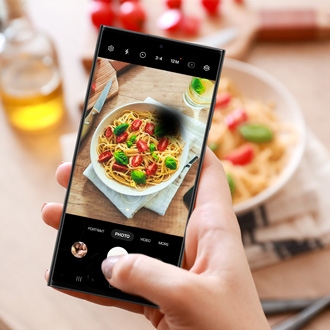
Dark or colored spots in photos on Samsung phone or tablet
If the photos you took on your Galaxy phone are marred by random dark, black, pink, or other colored spots, there may be a problem with the Camera app. This is most often caused by a software issue rather than a fault with the actual screen or camera.
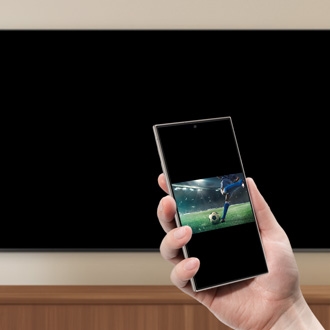
Galaxy phone or tablet Smart View or Screen Mirror issues
Smart View can be used with Galaxy phones and tablets running Android 4.3 or above and with devices that support Miracast wireless display technology. This technology is built into most newer Samsung smart TVs. However, your phone or tablet must be connected to the same network as your TV in order to use this function. If Smart View is not working,
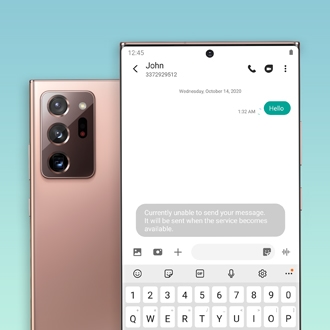
Messages are slow, do not send, or cannot be received on Samsung phone
If you are having trouble sending or receiving text messages, or they seem slow, it is usually an issue with the carrier or its service. Other times, iMessage may still be enabled if you just switched from an iPhone, which could make texts get stuck in limbo.
We're here for you
Contact Samsung Support
Contact us online through chat and get support from an expert on your computer, mobile device, or tablet. Support is also available on your mobile device through the Samsung Members App.