Troubleshoot touchscreen issues on a Samsung Galaxy device

If the touchscreen on your Galaxy device appears to be not responding properly, the issue may be caused by temporary system errors, screen protectors, accessibility settings, moisture, or third-party accessories. Certain settings and apps may also affect touch sensitivity or gesture recognition.
A Galaxy phone displaying an app folder, with a user tapping on one.

Troubleshoot touchscreen issues on a Samsung Galaxy device

Note
  • Menu names, settings, and screen layouts may vary depending on the model and software version.
  • If the issue continues after trying the steps below, use Samsung Members diagnostics or visit a Samsung service center for further assistance.
1

Restart your device.

A temporary system error may cause the touchscreen to stop responding normally. Restart your Galaxy device and check again.
 

Press and hold the Side key and Volume down key at the same time for more than 7 seconds until the device restarts automatically.
Device with the Side key and Volume down key on the right side highlighted.

Important
To complete the next steps, you can try connecting your device to a computer or monitor. This will allow you to navigate the device even if the touchscreen isn’t working.
2

Check screen protectors and accessories.

Screen protectors, cases, or other accessories attached to the device may affect touch sensitivity and gesture recognition.


Increase touch sensitivity
 

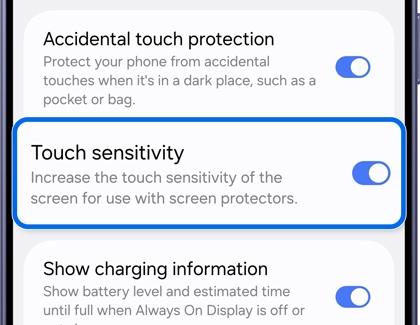
If a screen protector or tempered glass is attached, try increasing the Touch sensitivity setting.


  1. Open Settings, then tap Display.
  2. Turn on Touch sensitivity.
    Display settings page showing the Touch sensitivity toggle being turned on


Remove non-genuine accessories
 

Non-genuine screen protectors or cases may affect touchscreen functionality or cause gesture recognition issues, especially around the screen edges.


Remove the screen protector or case and check whether the touchscreen works normally.


Note: Non-genuine accessories may affect touchscreen performance and device functionality.


Check your charger
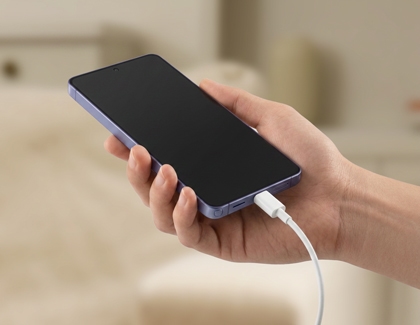
A hand holding a Galaxy phone while plugging in a charger.
If your charger is damaged, it may not supply power to your device, which may cause the touch screen to malfunction. In this case, use a different, undamaged charger to prevent this issue. It’s also a good idea to avoid using the touchscreen when the device is charging.

3

Check accessibility settings.

Certain accessibility settings may affect touch response or screen behavior.


Turn off TalkBack


If voice guidance plays when touching the screen and touch gestures do not work normally, the TalkBack feature may be enabled.


  • Tap once to select, double-tap to open.
    A phone home screen demonstrating a tap gesture with a blue circular indicator.
  • Touch and drag with two fingers.
    A phone Settings screen demonstrating a drag gesture with blue circular indicators.


Follow the steps below:


  1. Open Settings, then tap Accessibility.
  2. Tap TalkBack.
  3. Tap the switch to turn off TalkBack.
    TalkBack settings page showing the feature turned off.


Check Touch settings


If the touch and hold delay, tap duration, or ignore repeated touches settings were changed unintentionally, restore them to the default values.


  1. Open Settings, then tap Accessibility.
  2. Tap Interaction and dexterity.
  3. Set your desired touch settings.
    Interaction and dexterity screen with the Touch settings section highlighted.


Check Magnification shortcut settings


If the Magnification shortcut is set to triple-tap on the screen, quick touches may be missed, or touch response may become slower.


  1. Open Settings, then tap Accessibility.
  2. Tap Vision enhancements.
  3. Tap Magnification.
  4. Tap the switch to turn off Magnification shortcut.
    Magnification page with Magnification shortcut toggle turned off.
  5. Or change the Magnification shortcut settings.
4

Disable gestures.

When using the full screen gesture function, touch input may not be possible because the touch is recognized as a gesture. To stop this from happening, disable the full screen gesture function.
 

  1. Open Settings, and then tap Display.
  2. Tap Navigation bar, and then tap Buttons.
  3. Disable full screen gestures.
5

Check for moisture on the screen.

Moisture or water on the screen may affect normal touchscreen operation.
A hand wiping the Galaxy phone screen using a soft and dry cloth.

Wipe the screen with a soft, dry cloth and try using the device again.

6

Check for updates.

Outdated software or apps may cause compatibility issues or abnormal display behavior. Make sure your device software and apps are updated to the latest version.

Check for software updates
 

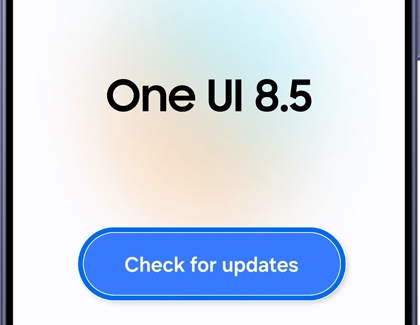
  1. Open Settings, then tap Software Update, and then tap Check for updates.

     Software update screen with the Check for updates option highlighted.
  2. Follow the on-screen instructions. A confirmation will appear once the software is up to date.

 
Check for app updates
 
  1. Open the Google Play Store app, then select your Google account.

    Google Play Store app screen with the profile icon highlighted.
  2. Tap Manage apps & device to check for available updates, and then tap Update all.
7

Run Samsung Members Phone diagnostics.

If the issue continues after trying the steps above, use Samsung Members Phone diagnostics to check the touchscreen status.
 

  1. Open the Samsung Members app, then tap Support.
    Samsung Members app home screen with the Support option highlighted.
  2. Tap Get started. The full diagnostics scan will begin. You can stop the process and select specific items to run individual tests.
  3. Select Touch screen.
    Phone diagnostics list with the Touch screen option highlighted.
  4. Follow the on-screen instructions and check the diagnostic results.
Note
Phone diagnostics is available only on Galaxy devices with the Samsung Members app installed.
8

Use Safe mode.

Safe mode will help determine if there is a recent third-party app that is causing an issue on your device.

  1. Press and hold the Power button (or Side button) and the Volume down button at the same time. You can also swipe down from the top of the screen using two fingers, and then tap the Power icon.
  2. Touch and hold Power off, and then tap Safe mode.
    Screen showing the Safe mode button being tapped, with the Safe mode legend visible at the bottom.
  3. Once you're in Safe mode, you can remove third-party apps. Start by removing apps that were updated or installed when the problem started.
  4. To exit Safe mode, simply restart your phone or tablet and it will reboot normally.
9

Perform a factory data reset.

Resetting your device to factory defaults should only be used as a last resort and after trying the previous steps. A factory data reset will remove all data and content from your device. Before performing a factory reset, be sure to back up your personal data, so you don't lose it all.
 

  1. Navigate to and open Settings, then tap General management.
  2. Tap Reset, and then tap Factory data reset.
  3. Swipe to and tap Reset, and then tap Delete all.
  4. Enter your Samsung account credentials to complete the reset; your device will reset, and you will need to perform the initial setup process.
Important
  • Please save any information you need prior to the factory reset because your personal information may not be recovered.
  • If you have encrypted the microSD card, you must decrypt it before resetting the device. Otherwise, your device will not be able to read the data on the card. From Settings, search for and select Decrypt SD card, and then follow the on-screen prompts.
  • A network connection will be required to log out of your Samsung account before you can complete the reset.
  • If you cannot reset your device or complete the initial setup due to the account credentials that are stored on the device, please contact us for assistance.
10

Contact Samsung Support.

If the issue continues after following the steps above, reach out to Samsung Support for further assistance.
Was this content helpful?
We're here for you

Contact Samsung Support

Contact us online through chat and get support from an expert on your computer, mobile device, or tablet. Support is also available on your mobile device through the Samsung Members App.