Fix blurry or poor photo and video quality on your Samsung Galaxy device

If your photos or videos appear blurry, dark, or lower in quality than expected, this may be caused by camera settings, shooting distance, or environmental factors. Certain features and accessories can also affect focus and image clarity.
A purple Samsung Galaxy phone displaying a photo of two smiling women outdoors in the gallery app.

Fix blurry or poor photo and video quality on your Samsung Galaxy device

Set the scene for a clear photo on a phone or tablet

Lighting

The most important element of any photo on any camera is the amount of indirect light it receives. If a light is shining directly at the camera, it can cause areas of both overexposure and underexposure in the same image. An underexposed photo will appear dark and fuzzy or spotty, whereas overexposure will cause it to look bright and washed out.


The camera on your phone or tablet can automatically adjust the exposure to get enough light; however, the camera may have difficulty focusing or fully exposing the photo in some lighting situations.

Speed of motion

Moving the camera while taking a photo, or taking a photo of a moving subject can very easily create blur. To maximize your photo's clarity, hold your phone or tablet as still as possible, and make sure your subject is well lit. When taking a panoramic photo or tracking a moving subject, keep your movements slow and steady to prevent blurring.

Distance and zoom

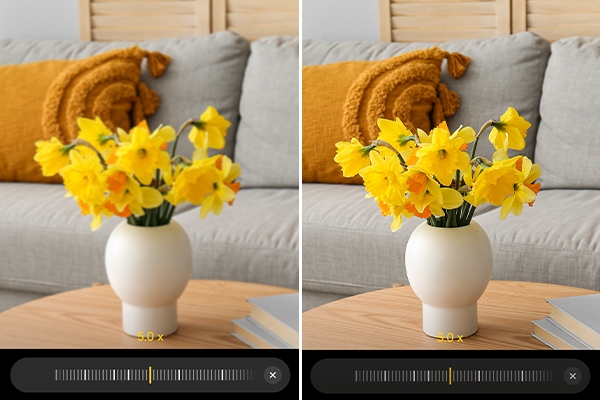
If you are too close to your subject, the camera on your phone or tablet will not be able to focus. The standard lens will work best when your subject is at least 12 inches away. Try moving away from your subject and zooming in to frame the shot. The telephoto lens needs at least 20 inches to properly focus.


The Hybrid Optical 10x Zoom lens featured on some devices will have its best results from 32 inches away. If your device has an Ultra Wide lens, try moving closer and zooming out. You will need to be at least 4 inches from your subject.

Clean the lens

A dirty or smudged lens can ruin an otherwise perfectly composed photo.


Use a soft, dry, microfiber cloth to remove any fingerprints, smudges, and dust from the lenses on the device. Make sure to clean all the lenses on the device. Additional lenses are used for the preview, rangefinding, and auto-focus.

Read less

When your camera appears blurry or out of focus

When the area around the subject is blurry at close range

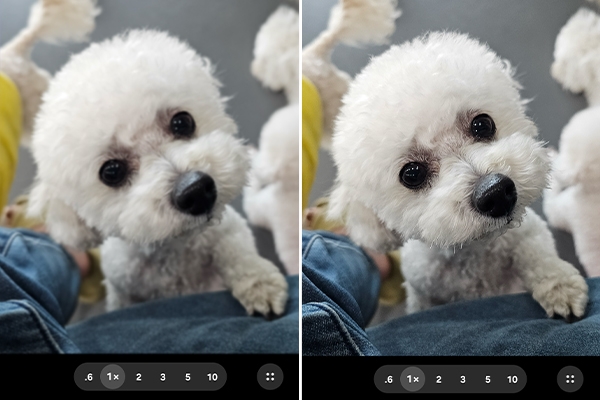
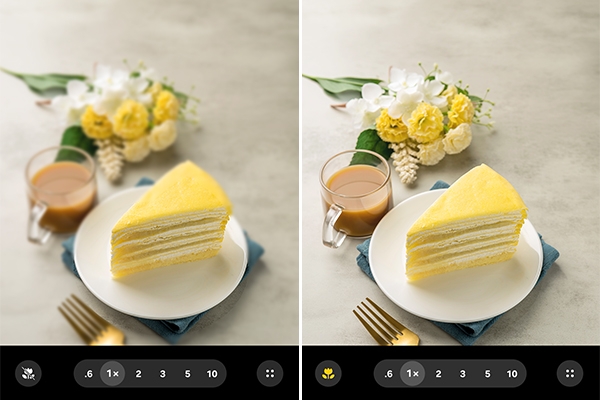
Your Galaxy device includes a Focus enhancer feature that automatically switches to the ultra-wide camera to reduce blur around the subject when taking photos or videos at close range. If this feature is turned off, the area around the subject may appear blurry.
 
Open the Camera app, then tap the flower icon on the preview screen to turn on Focus enhancer.
Comparison of the results with Focus enhancer enabled vs. disabled.

When your camera appears blurry or shows light distortion from using a lens protector

If you are using a camera protector or lens cover, it may cause focus issues or light distortion in your camera.


Try removing the protector or cover from the camera lens and use the camera again.

Comparison of the results with vs. without camera protector.

When your camera appears blurry at close range with high zoom (Ultra models)

When using high zoom, your device automatically switches to the telephoto camera. The telephoto camera is designed for distant subjects, so objects at close range may appear out of focus when using high zoom.


Check and maintain the minimum shooting distance for your model before taking photos or videos for clearer results.

Comparison of a close-range blurry image vs. a focused distant object.

Note
The minimum shooting distance for the 5x telephoto camera is 30 cm on the S25 Ultra and 80 cm on the S26 Ultra.

When your camera appears blurry in high-resolution (200 MP) setting (Ultra models)

The camera’s focus range can vary depending on the aperture, shooting distance, and subject position, so some parts of the camera may appear blurry, which is a normal optical characteristic. 

Read less

When dark lines appear while taking photos or videos

If the screen flickers or black lines appear when taking photos or videos, this may be caused by indoor lighting. Try the steps below to resolve the issue.

  1. Open the Camera app, then tap MORE and select the PRO mode.
    Camera screen with MORE and PRO highlighted.
  2. Select the shutter speed.
    PRO mode screen with the settings panel at the top highlighted.
  3. Adjust the shutter speed to 1/120s or lower.
    Comparison of a photo showing horizontal dark lines vs. without dark lines.
Note
Flicker may occur due to lighting frequency and is a normal camera behavior.
Read less

When photos show light streaks or glare

Light streaks or glare (lens flare) can occur during photography, especially in bright lighting conditions or at night when there are many light sources. This effect may be more noticeable if the lens is dirty or when using high zoom.

  • Clean the camera lens to remove fingerprints, dust, or smudges.
  • Adjust your shooting conditions, such as changing the angle or avoiding strong light sources when possible.
  • Use AI editing features to reduce light effects.

How to use AI editing features

  1. Open the Gallery app and select your desired photo, then tap the Photo assist icon (the cluster of stars).
  2. Tap or draw around anything you want to move or delete.
    A circular area drawn around a light streak in a photo.
  3. Tap Erase.

    Erase button highlighted below an image.
Comparison of a photo with an unwanted light streak vs. cleaner image.
Read less

When your camera preview appears too dark

If your camera preview looks darker than expected, this may be due to the Advanced Photo mode controls settings in Good Lock Camera Assistant. This feature helps reduce blur and noise by limiting shutter speed and ISO, where Minimum shutter speed reduces motion blur and Maximum ISO maintains image clarity.


If you prefer a brighter preview, turn off Minimum shutter speed and Maximum ISO in Advanced Photo mode controls.

Note
Camera Assistant is available only in countries that support the Good Lock app.
  1. Open the Camera app, then tap the Quick controls icon (the four squares).
    Camera screen with the Quick controls icon highlighted.
  2. Tap the Settings icon.
    More menu with the Settings icon highlighted.
  3. Tap Camera Assistant.
  4. Tap Advanced Photo mode controls.
  5. Set Minimum shutter speed and Maximum ISO to None.
    Advanced Photo mode controls menu with Minimum shutter speed and Maximum ISO set to None.
Comparison of a photo with dark camera preview vs. brighter preview.
Read less

When your camera appears foggy or hazy

If your camera appears foggy or hazy, it may be caused by condensation inside the camera. This can occur when there is a temperature difference between the inside and outside of the device.


Wait for the condensation to clear naturally.

Note
Condensation is temporary and will disappear over time. You can continue using your device normally.
Read less
Was this content helpful?
We're here for you

Contact Samsung Support

Contact us online through chat and get support from an expert on your computer, mobile device, or tablet. Support is also available on your mobile device through the Samsung Members App.