Software update failed on Samsung device
Check the current software version on your Samsung phone or tablet
- Open Settings on your device, and then tap About phone or About tablet.
- Tap Software information.
- The Baseband version is the software version currently running on the device.
Check with the carrier for available updates to your Samsung phone or tablet
All devices
When a software update is available, you will be able to download it directly to your device.
Verizon
Verizon maintains a page that allows you to select a device from a list. While the complete update history is not available, the last few updates for each device are included.
AT&T
AT&T maintains a single page that allows you to search for any Galaxy device's software update history.
T-Mobile
T-Mobile releases information about major software updates that are in progress. The current version for individual devices can be found on the support page for the device. Details of past updates can be found by selecting Software updates on the support pages.
Unlocked by Samsung
Phones that are factory unlocked will be able to download the latest software without restriction. If no updates are available when checking, the device is on the latest released software. Unlocked devices require more testing than carrier branded devices because they must operate on all carriers, so updates may be delayed compared to carrier devices.
Other carriers
Prepaid carriers will often use the same software as their parent networks. However, most MVNOs do not publish the current software version.
An expected update is not available on your Samsung phone or tablet
If you have verified that the original carrier has released a software update for the mobile device and it's not available when checking for updates via Settings, there are a few things to consider.
- Connect the mobile device to Wi-Fi. Updates are large and many carriers will require a Wi-Fi connection to prevent overloading the mobile network.
- If the device is SIM unlocked by the original carrier, you may be required to have a SIM from the original carrier installed in the device to download updates.
- If an update was just released, it may be distributed in waves to spread out the load on the servers hosting the update files. Continue checking for updates every few hours.
- If a PC is available, try using Smart Switch to install the update. Smart Switch will prompt you to install the update when the device is connected via USB.
- Some carriers have their own PC based software update utility available on their websites.
Software update doesn't complete on your Samsung phone or tablet
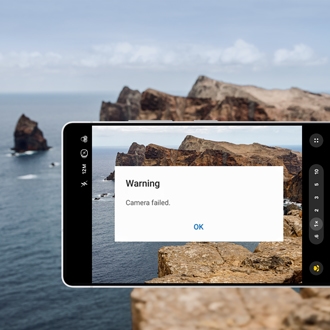
If the update fails to install, in most cases the device will recover from the error, and try again, though some additional action may be required:
- If there is an error concerning insufficient storage, you will need to free up storage space. The device will display the amount of space needed.
- If the update fails to completely download, you will be able to resume the download from the notification.
- If the update continuously fails to download, you may be able to update the device with Smart Switch.
If the device fails to boot normally after an update fails, service will be required to reflash the device.
Software update doesn't complete with Smart Switch
1. Check for PC updates.
- Updates may be available for your PC. If you are using a Samsung PC, you can check for available updates from our Manuals & Downloads page.
- You can also open Settings on your PC, and then select Windows Update.
2. Restart your PC.
Restarting your PC may help to clear any issues you’re experiencing. It’s also a good idea to restart your PC immediately after a software update.
3. Remove and reinstall Smart Switch.

Next, you can try removing and reinstalling the Smart Switch app.
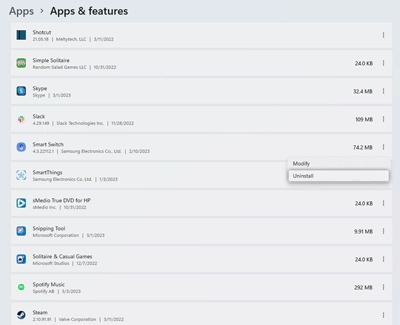
- Open Settings on your PC.
- Select Apps > Apps & features.
- Locate Smart Switch in the list, and then select More options (the three vertical dots) next to it.
- Select Uninstall > Uninstall.
- Wait a moment while the app uninstalls.
- Reinstall Smart Switch using the Microsoft Store.
Note: If you are using a Galaxy Book, you can install the Galaxy Book Smart Switch app.
4. Check the USB settings on your connected phone or tablet.
When your device is connected to your PC, a pop-up will appear, prompting you to choose how you’d like to transfer data. Make sure Transferring files / Android Auto is selected.
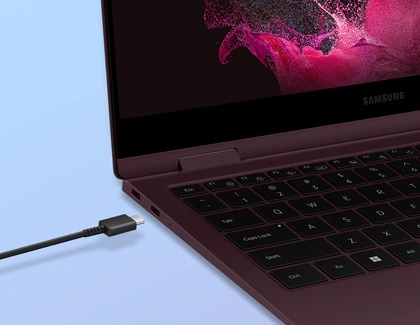
5. Try a different USB port or USB cable.

Try connecting your phone to another USB port on your PC, if one is available. Or, you can try using another USB cable.
6. Use a different PC.
Finally, you can try using Smart Switch on a different PC.
If you are still unable to update your phone or tablet using Smart Switch on your PC, please repeat the above steps.