Samsung Browser app is no longer auto-filling IDs and passwords

If your Samsung Browser app is no longer auto-filling your ID and password information from data you've saved in Samsung Pass, hiding the status bar may resolve the issue. As always, make sure your apps are up to date to fix potential glitches.
A Galaxy phone showing the Samsung website with a Samsung Week promotional banner.

Samsung Browser app is no longer auto-filling IDs and passwords

1

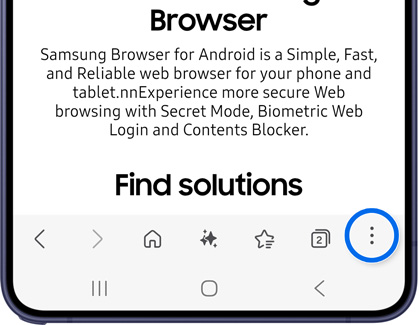
Open Samsung Browser settings.

Tap the Tools icon (the three vertical dots) in the lower right corner, and then tap Settings.
A Galaxy phone showing the Samsung Browser with the More options button highlighted in blue in the bottom toolbar.
2

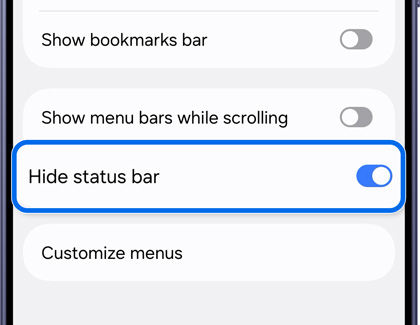
Toggle on the Hide status bar option.

Tap Layout and menus, and then turn on the switch next to Hide status bar.
A Galaxy phone showing the Samsung Browser settings with the Hide status bar toggle highlighted in blue and turned on.
3

Check for app updates.

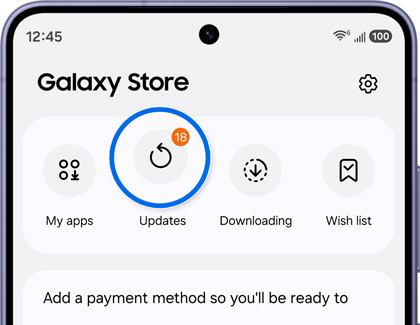
Make sure to check for app updates and install them. Open the Galaxy Store app, and then tap Menu at the bottom of the screen. Tap Updates to check for available updates.

  • If an update is available, tap the Update icon next to Samsung Browser. 
  • If multiple updates are available, tap Update all to update all apps at once.

A Galaxy phone showing the Galaxy Store home screen with the Updates button highlighted in blue showing 18 pending updates.

Note
App updates are frequently released to resolve little bugs and glitches so installing app updates may also resolve the issue.
Was this content helpful?
We're here for you

Contact Samsung Support

Contact us online through chat and get support from an expert on your computer, mobile device, or tablet. Support is also available on your mobile device through the Samsung Members App.