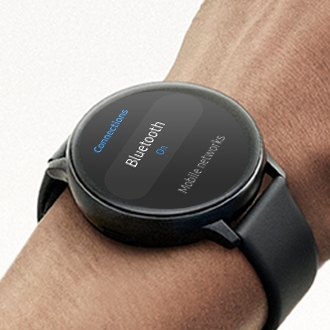
Samsung smart watch will not connect to a phone

If your Galaxy Watch disconnects or fails to connect to your mobile device, you can try adjusting permissions for your Galaxy Watch. Follow the troubleshooting steps below to restore your connection.
A Galaxy Watch next to a Galaxy phone displaying the Samsung Health all on a purple background.

Samsung smart watch will not connect to a phone

How to configure Google Play services permissions


If Bluetooth connection permissions are not allowed, your Galaxy Watch may fail to connect. If you encounter connection issues, try changing the app permissions for Google Play services to allow for all the categories that require permission.

Troubleshooting Galaxy Watch connection issues

  1. Open Settings > Tap Apps.
  2. Find and Tap Google Play services.

    Apps list with Google Play services highlighted.
  3. Tap Permissions.

    App info screen with the Permissions tab highlighted.
  4. Tap the categories under the Not Allowed section, if any are listed.

    App permissions screen with the Nearby devices option highlighted.
  5. Allow the app to get permission.
    Nearby devices permission screen with the Allow option selected.
Read less

Additional troubleshooting steps for Galaxy Watch

  • Check that the Bluetooth feature is enabled on both your Galaxy Watch and your smartphone.
    Bluetooth settings screen with the switch enabled.
  • Check for any physical obstacles (such as walls, electronic equipment, etc.) between the smartwatch and your mobile device.
  • Ensure that the Wearable app is installed on your phone. If it is not the latest version, update it to the newest version.
    Phone screen with Wearable app highlighted.
  • Ensure that the smartwatch and the connecting smartphone are within the maximum Bluetooth connection range (10m / 32ft). The actual operating distance may vary depending on the usage environment.
  • Restart both your smartwatch and smartphone, then relaunch the Wearable app on your phone.
    Power menu with the Restart option highlighted.
Read less

Galaxy Watch device compatibility specifications

Galaxy Watch device compatibility specifications

Galaxy Watch Model

Samsung Device Requirements

Non-Samsung Device Requirements

iOS Requirements

Galaxy Watch8 series & Watch Ultra

Android 12.0 or higher, 1.5GB RAM or higher (Tablets not supported)

Android 12.0 or higher, 1.5GB RAM or higher (Certain models and tablets not supported)

Not supported

Galaxy Watch7 series & Watch Ultra

Android 11.0 or higher, 1.5GB RAM or higher (Tablets not supported)

Android 11.0 or higher, 1.5GB RAM or higher (Certain models and tablets not supported)

Not supported

Galaxy Watch6 series

Android 10.0 or higher, 1.5GB RAM or higher (Tablets not supported)

Android 10.0 or higher, 1.5GB RAM or higher (Certain models and tablets not supported)

Not supported

Galaxy Watch5 series

Android 8.0 or higher, 1.5GB RAM or higher (Tablets not supported)

Android 8.0 or higher, 1.5GB RAM or higher (Certain models and tablets not supported)

Not supported

Galaxy Watch4 series

Android 6.0 or higher, 1.5GB RAM or higher (Tablets not supported)

Android 6.0 or higher, 1.5GB RAM or higher (Certain models and tablets not supported)

Not supported

Note
Available features, menu options, interface, and settings may vary depending on your specific device model and software version.
Was this content helpful?
We're here for you

Contact Samsung Support

Contact us online through chat and get support from an expert on your computer, mobile device, or tablet. Support is also available on your mobile device through the Samsung Members App.