The USB port on the Galaxy XR won't charge the headset
Understand the purpose of the USB-C port
The USB-C port is designed for connecting the device to other devices, such as a PC or another Android device, for data backup and transfer. It does not support charging (data only). It can also be used to connect peripherals like a mouse, keyboard, or other compatible devices, similar to how it is used on phones.
Learn how to open the USB port cover
The Galaxy XR is primarily designed for wireless data communication, and the USB port serves as a secondary option.
To open the USB port cover:
- Press the circular mark on the upper right side of the cover.
- If needed, use your fingernail or a tool to press the marked area
Use the USB port to transfer data
Refer to our other guide to learn how to manually copy files on your Galaxy XR to your phone or computer and securely transfer your data to safeguard important files.
Properly charge the Galaxy XR
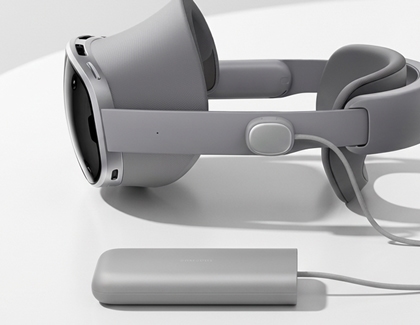
The Galaxy XR does not support charging through the USB-C port. Always use the designated battery pack for charging.
To charge your battery pack and power the headset:
- Plug one end of the USB-C charging cable into the battery pack and the other end into the wall charger. Then, connect the wall charger to a power source.
Note: The indicator light will show the charging status. If the indicator light flashes, disconnect and reconnect the cable. Ensure it's properly connected to both the battery pack and the wall charger. - Next, insert the power cable into the battery pack, and then connect the other end of the cable to the power connector on the headset until it clicks.
You can charge the battery pack while using the headset. Just connect the battery pack to the wall charger with the USB-C cable, and plug it into a wall outlet. Once fully charged, disconnect the battery pack from the charger and unplug the charger from the wall outlet.
Contact Samsung Support

