Missing old emails in the Samsung Email app

If you're unable to locate your older emails in the Samsung Email app, it might be due to the sync period being set to a brief duration, such as '3 days' or '1 week'. To access older emails, follow these steps:
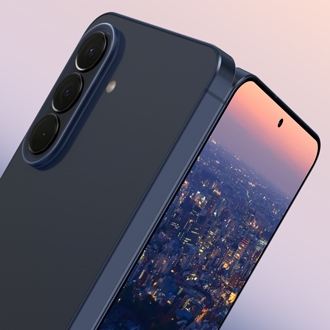
A Galaxy S25 showing an email inbox next to an Email sync period menu with 2 weeks selected.

Missing old emails in the Samsung Email app

1

Change the sync period.

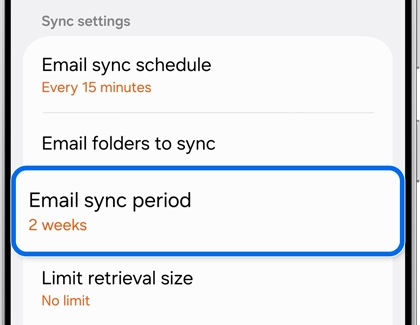
Open the Samsung Email app on your device, then tap the Menu icon (three horizontal lines) in the top left corner. Tap the Settings icon (it looks like a gear) in the far top right corner, and then tap your email account under the "Accounts" section. Tap Email sync period, and then select a longer duration.

A Galaxy S25 showing the Sync settings menu with the Email sync period option highlighted by a blue rounded box.

Tap the Back icon twice to return to your email inbox.

2

Use the Search function.

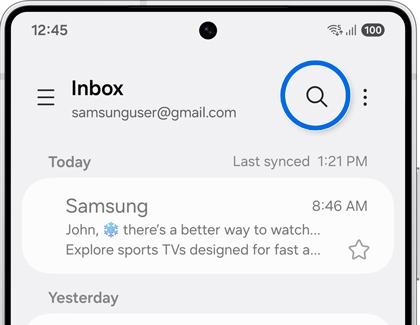
Tap the Search icon (it looks like a magnifying glass) in the top right corner of the List screen. Enter a keyword or subject name in the search field to retrieve older emails from the server.

A Galaxy S25 showing an email inbox with the magnifying glass search icon circled in blue.

3

Scroll up in your mailbox.

Scroll up from the bottom of your mailbox. The app will load and display older emails.
Was this content helpful?
We're here for you

Contact Samsung Support

Contact us online through chat and get support from an expert on your computer, mobile device or tablet. Support is also available on your mobile device through the Samsung Members App.
auto-contact_us-pc-2x auto-contact_us-pc-2x